
05.6 Layout, copy and reuse
Move, resize and group widgets, copy them to other dashboards, and reuse their look as saved widgets.
Arrange the board
- Move: drag a widget by its title bar or its ⠿ grip. Guides appear to help you line things up.
- Resize: select one widget and drag its handles.
- Select several 1: Shift/Ctrl/⌘ + click, or drag a box over empty canvas.
- Group: select several and click Group 2 (Ctrl/⌘ G). They then move and copy together. Ungroup (Ctrl/⌘ Shift G) splits them. Click a grouped widget twice to reach just that one.
- Dashed lines show where each screenful ends, so you can see what readers see without scrolling.
The board scales to the reader’s screen width.
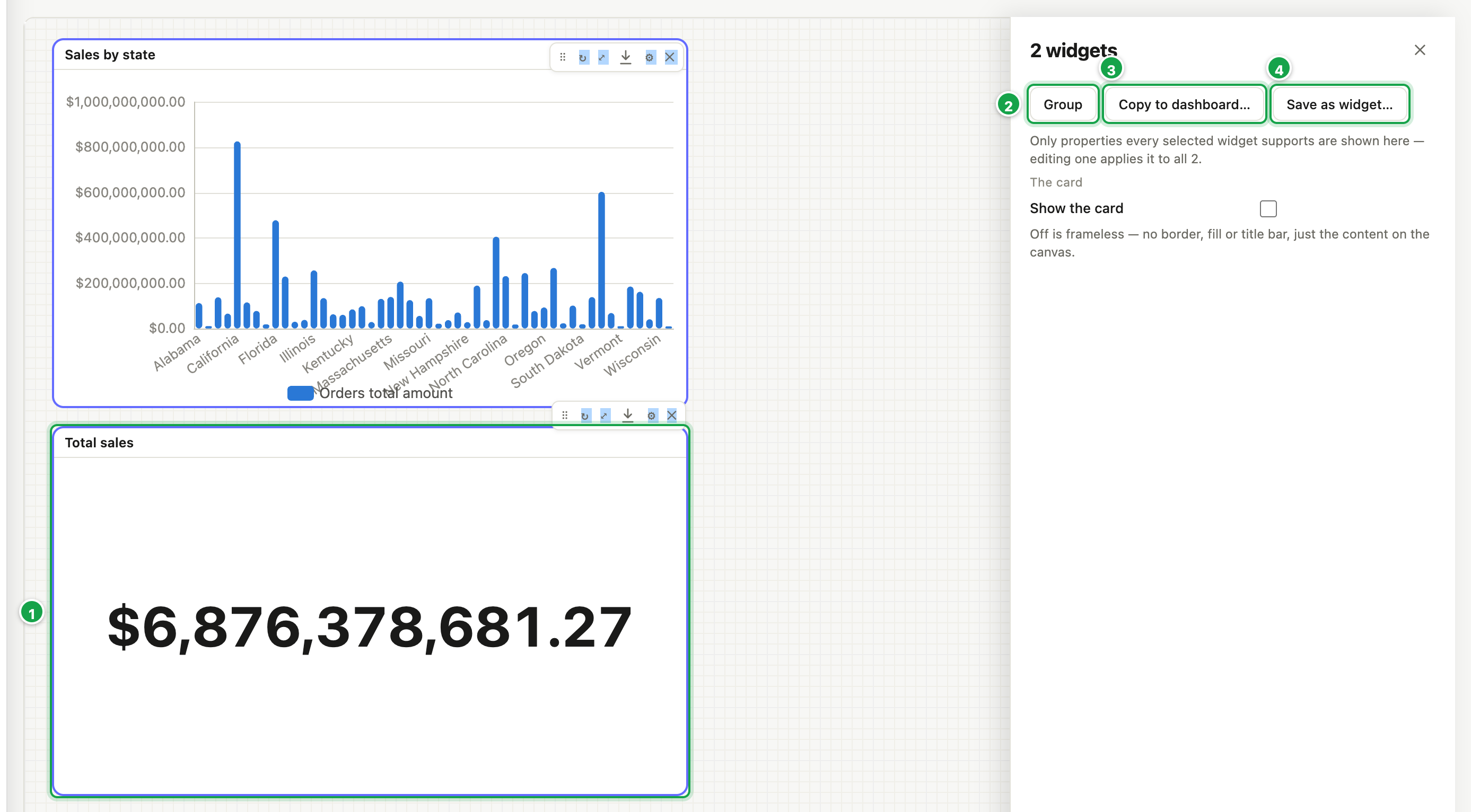
| # | What it is |
|---|---|
| 1 | Shift-click (or drag a box) to select several |
| 2 | Group: move and copy them together |
| 3 | Copy to dashboard… |
| 4 | Save as widget…: reuse their look |
Copy and paste on the same board
- Ctrl/⌘ C copies, Ctrl/⌘ X cuts, Ctrl/⌘ V pastes.
- Pasting saves the board first, then adds the copies slightly offset.
Copy widgets to another dashboard
- Select one or more widgets.
- Click Copy to dashboard… 3 in the right panel.
- Pick the dashboard and click Copy.
The datasets they use are added to that board’s Model if they’re missing.
Saved widgets (templates)
Save a set of nicely styled widgets to reuse their look on other boards.
- Select the widgets and click Save as widget… 4.
- Give it a Name and Description, then Save widget.
- On any board: toolbar Saved widgets → pick it.
A template keeps the appearance, not the data. The new copies arrive empty, pick their columns to fill them. Deleting a template doesn’t affect boards already built from it.
Next: 05.7 View, refresh and export
Last updated 12 October 2026