
03.5 Formula columns
A formula column is a column you calculate rather than one stored in the table, e.g. full name from first and last name, the month of an order date, or a fixed value of 0.
Worked example: net amount
The orders table has total_amount and discount_amount. You want net_amount = total minus discount, as a column every report can use.
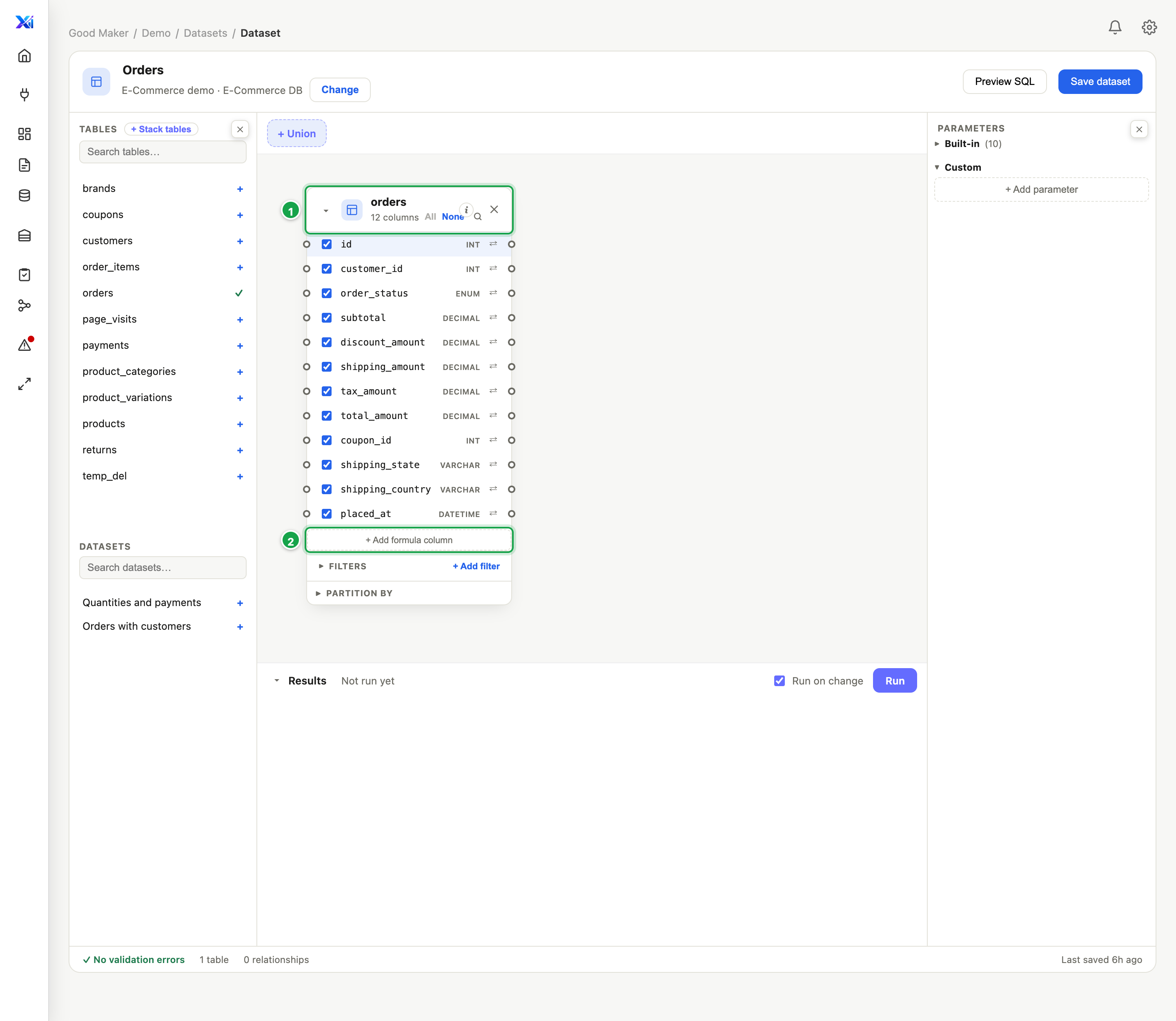
Step 1. On the orders table 1, click + Add formula column 2.
| # | What it is |
|---|---|
| 1 | The table the new column belongs to |
| 2 | + Add formula column |
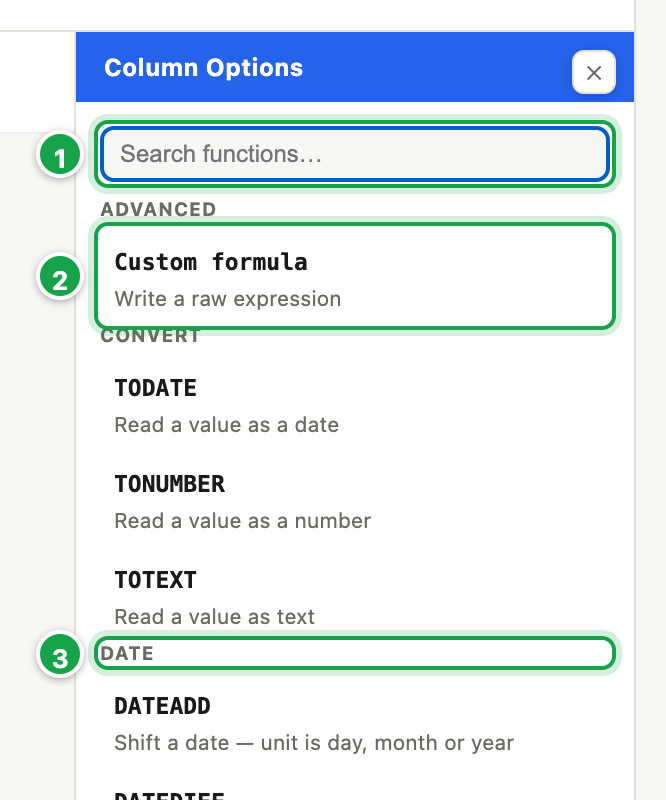
Step 2. The Column Options panel opens on the right with a list of functions. A subtraction needs no function, so click Custom formula 2.
| # | What it is |
|---|---|
| 1 | Search functions…: type part of a name, e.g. round |
| 2 | Custom formula: write the calculation yourself |
| 3 | Functions grouped by kind: Text, Date, Math, Logic, Convert, Advanced |
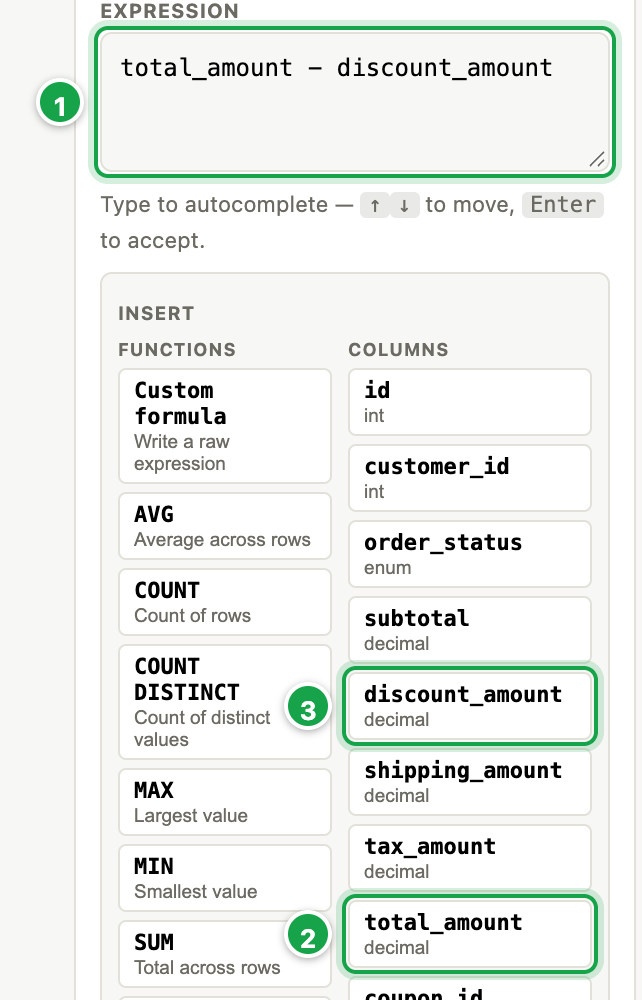
Step 3. In Expression 1, type total_amount - discount_amount. Instead of typing the column names, you can click them under Insert › Columns: total_amount 2, type -, then discount_amount 3.
| # | What it is |
|---|---|
| 1 | Expression: the calculation. Suggestions appear as you type. |
| 2 | Insert › Columns: click a column to put its name where the cursor is |
| 3 | The second column of the example |
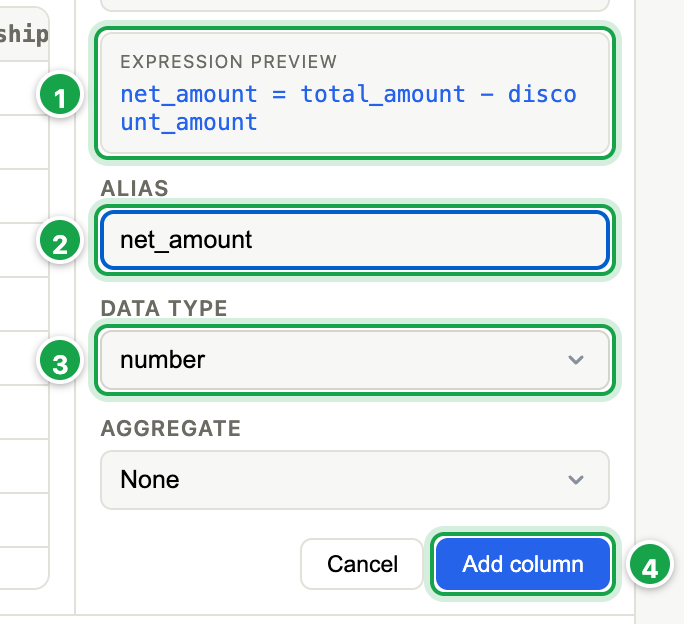
Step 4. Name the column and say what it holds:
- Check the Expression preview 1.
- Alias 2:
net_amount. - Data type 3: number, so it can be summed.
Then click Add column 4.
| # | What it is |
|---|---|
| 1 | Expression preview: the new column and its calculation |
| 2 | Alias: the new column’s name (required) |
| 3 | Data type: number, so it can be summed |
| 4 | Add column |
Step 5. The column appears on the table 1 and in the results 2. Click Save dataset to keep it.
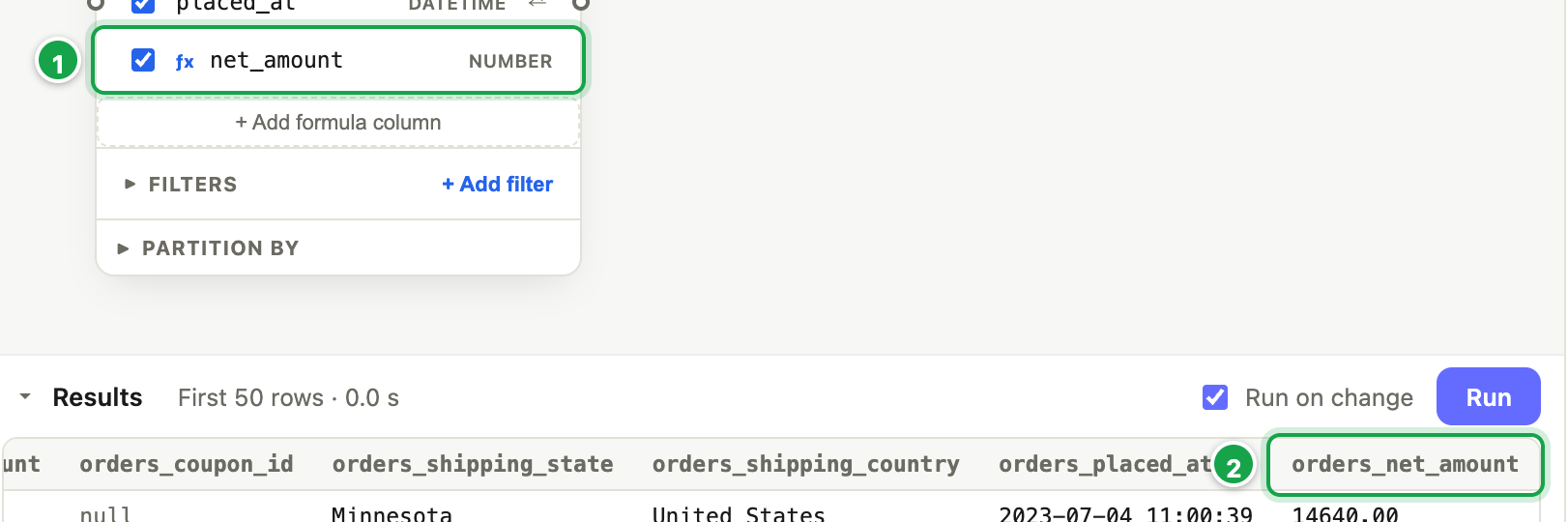
| # | What it is |
|---|---|
| 1 | The new column on the table, marked ƒx. Click it to change or remove it. |
| 2 | Its values in Results |
Add one: every option
- On a table card, click + Add formula column.
- On the right, pick a function. Use Search functions… or browse Text, Date, Math, Logic, Convert, Advanced. Greyed-out functions aren’t available on your database.
- Fill in what the function needs. For each value choose:
- Column: pick one of this table’s columns, or
- Text: type a value yourself (see Typing values below).
- Check the Expression preview.
- Give it an Alias, its name. This is required: without it, Add column does nothing.
- Choose its Data type: string (text), number, date or boolean (yes/no). This controls what Analytics lets you do with it, e.g. only numbers can be summed.
- Click Add column.
The column appears on the card with an ƒx badge. Click it to change it (Update column) or delete it (Remove).
Typing values
What you type in Text is used exactly as written:
- a number:
0,100,0.18 - words: put them in single quotes:
'N/A','Unknown'
Without the quotes, N/A isn’t read as words and the dataset fails.
A free-text or fixed-value column
Sometimes you need a column that holds the same value on every row: a label like ‘Online’, a placeholder 0, or an empty value. Typical uses are tagging where rows came from, or lining up two stacked parts that don’t have the same columns (03.8).
- + Add formula column → Custom formula.
- In Expression, type the value:
| You type | It is | Data type is set to |
|---|---|---|
'Online' |
text: always in single quotes | string |
0, 2020, 12.5 |
a number: no quotes | number |
NULL |
empty | (leave as it is) |
- Alias: the column’s name, e.g. channel.
- Add column.
The Data type follows what you type, and you can still change it.
Text without quotes is refused. Typed as Online (no quotes), the database would look for a column called Online. So Add column stops and says: “Online” is read as a column name, and there is no such column. Text goes in single quotes: ‘Online’.
With totals (Aggregate)
When the dataset adds things up (03.6):
- A text value (
'Online') shows on every row of the result. Totals are the same as if you had grouped by it. - A number (
0,2020) is a number, so it’s summed like any number column: a0placeholder stays 0, but2020becomes 2020 × the rows in each group. To keep a number as a label, quote it ('2020') or set its Aggregate to None.
IF … THEN … (CASE)
Pick CASE to give a value depending on conditions, e.g. Large when amount > 10,000, otherwise Small.
- Under Conditions, set WHEN column, operator and value, and THEN the result.
- + Add condition for more.
- Else (optional) is the result when nothing matches.
Here Analytics adds the quotes for you.
Write your own: Custom formula
Custom formula is written in the formula language, the same one reports use (like Excel), e.g. price * quantity, upper(city) or sumif(entry = "Output", qty). Analytics translates it for your database and shows the SQL it runs as; one that can’t be written in SQL shows why and can’t be saved.
- Suggestions appear as you type (↑↓ and Enter). The Insert panel lists functions and columns.
- It is a row formula (one value per row) or a group formula (with
sum,sumif,countif). A group formula summarises the dataset: its other columns become the groups, as in 03.6. - A total can be this row’s group’s total, like Excel’s
SUMIFS(…, Doc, A2):sumif(Document_No = $thisrow.Document_No and …, Quantity). The formula stays a row formula, so it can use the row’s own columns too; give it Aggregate SUM to add it up per document. See 04.12 and the case study: count a row only when its group qualifies. - A Custom formula made before 17 October 2026 is in your database’s own SQL (with
:parameters). It keeps working as written.
Limits
- The guided functions can only use this table’s own columns. To combine columns from two tables, use Custom formula.
- If you calculate a number, set Data type to number, or it can’t be summed or totalled.
Next: 03.6 Summarise rows
Last updated 12 October 2026