
05.5 Filters on a dashboard
A dashboard has one filter bar for all its widgets. Pick Region = North and every widget shows North.
Add filters (designer)
- Click Filters on the toolbar. The board’s date is set here too: its column 1 and the date readers start with 2.
- Click Add a filter on… 3 and pick a column (shown as column — dataset).
- Set:
- Condition: how it compares (equals, between…)
- Selection: Single or Multiple values
- Default: the value readers start with
- Tag: a name that passes the value to a dataset’s parameter of the same name (see 03.7)
- Save the board.
The filters work the same way as in reports, see 04.6 Filters.
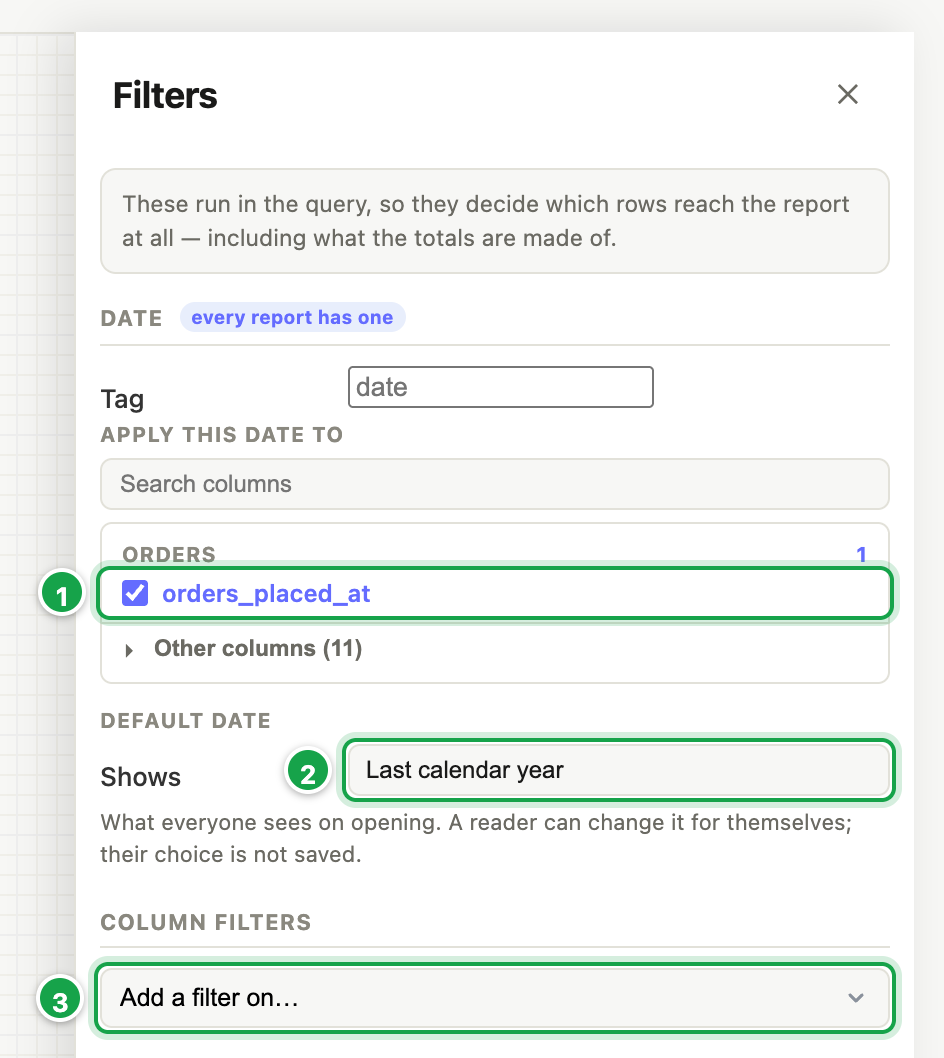
| # | What it is |
|---|---|
| 1 | Apply this date to: the date column |
| 2 | The date readers start with |
| 3 | Add a filter on… a column |
Using the filter bar (everyone)
- Click a filter’s ▾ to pick values, dates or text.
- ✕ clears that filter. The date filter can be changed but not cleared.
- Reset goes back to the board’s defaults.
Analytics remembers your choices for each board in your browser, so you come back to what you last picked. Reset forgets them.
Good to know
- A widget that doesn’t use the date shows ⚠, see 05.3.
- If a dataset needs a parameter that no filter supplies, the board’s Problems badge says so and offers Add a filter tagged …. See 09.1.
Next: 05.6 Layout, copy and reuse
Last updated 12 October 2026