
04.4 Group, total and sort
Three boxes above the result shape the report:
| Box | Holds | Example |
|---|---|---|
| Rows | What you group by, in order | Region, then Product |
| Pivot column | A column whose values spread across the top | Month |
| Values | What you total | Sales, Quantity |
Worked example: sales by state
The demo report Sales by state shows one row per state with its total sales, for last year.
- Tick orders_shipping_state and orders_total_amount on the left, and untick the rest. Both land in Rows.
- On the orders_total_amount chip, click →. It moves to Values 2 and shows Sum.
- orders_shipping_state stays in Rows 1: one row per state.
- Switch Grand total 3 on.
The result 4 has one row per state and its total.
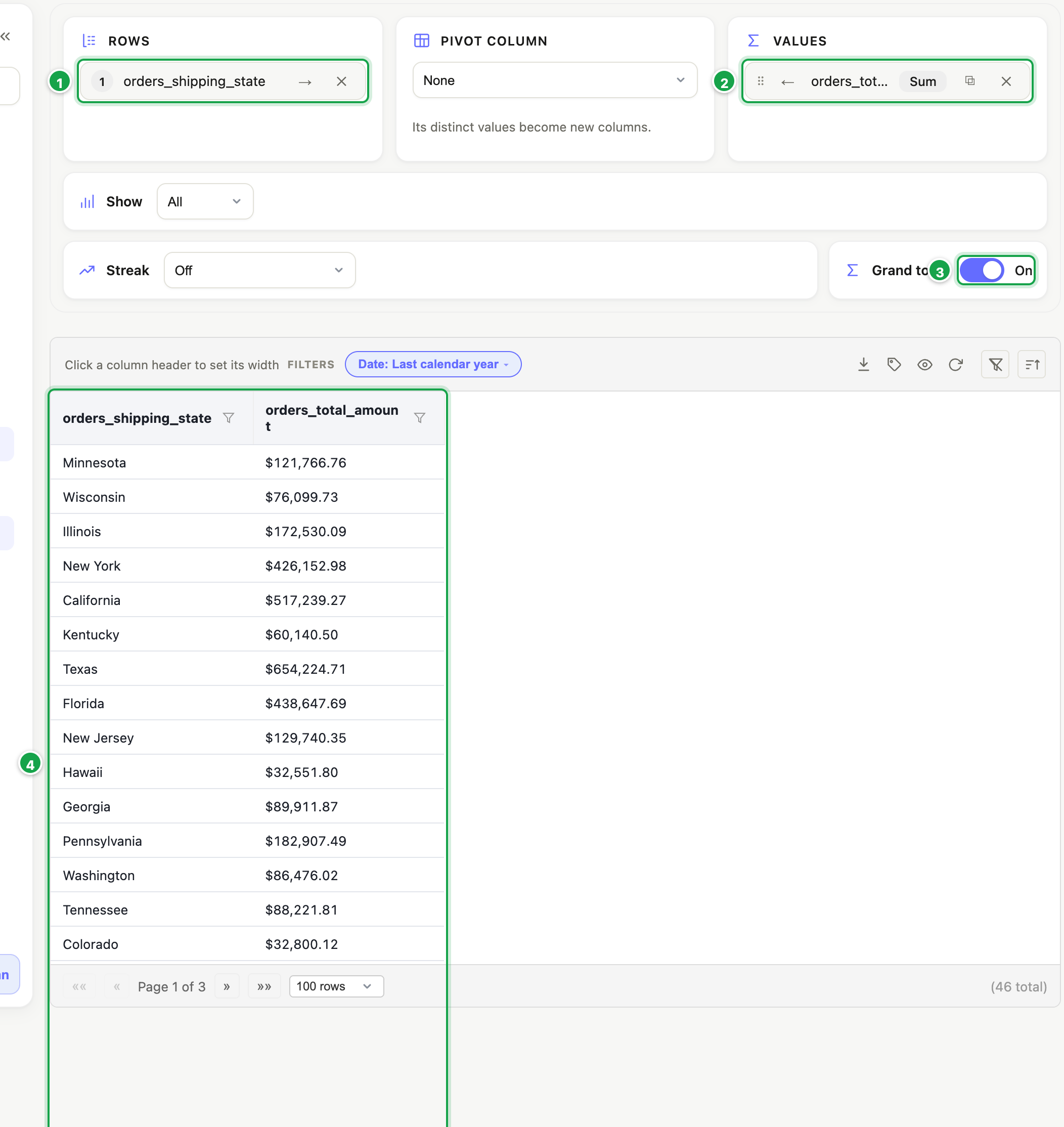
| # | What it is |
|---|---|
| 1 | Rows: one row per state |
| 2 | Values: the total of each state’s sales |
| 3 | Grand total: one total row for everything |
| 4 | The result |
Group rows: the rules
- Ticked columns land in Rows. The numbers on the chips (1, 2, 3) are the nesting: 1 Region → 2 Product means products within each region. Drag to reorder.
- → moves a column to Values. Each chip there shows its total (e.g. Sum).
- ✕ on a chip takes the column out of the report.
Default totals: the first time something is totalled, Analytics also totals every other shown number column with the workspace’s Default fact (usually Sum). Change any of them in the column’s Aggregate.
Subtotals and grand total
Click a chip in Rows to open Grouping (picture below):
- Sub-total 1: Add a sub-total row per group. Not available on the last (innermost) row field.
- Repeat 2: Repeat the value on every row. When off, a region name shows once at the top of its group and blank beneath. Easier to read.
- Grand total 3: one total row for the whole table. Also on the Grand total switch under the boxes.
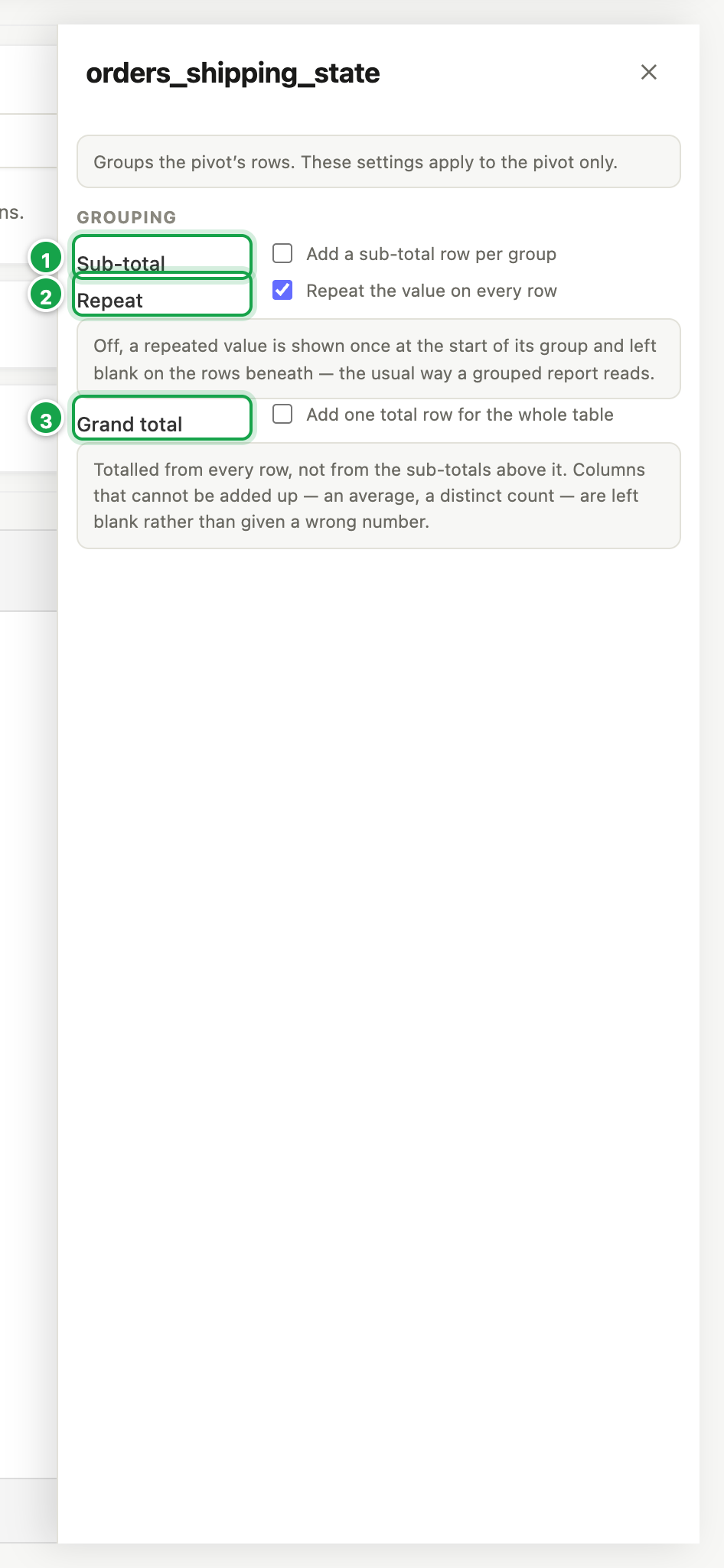
| # | What it is |
|---|---|
| 1 | Sub-total: a total row for each state |
| 2 | Repeat: show the state on every row, or once per group |
| 3 | Grand total |
Totals are worked out from all the underlying rows, not by adding up the lines you see. Columns that can’t be added up, such as an average or a distinct count, are left blank on total rows rather than showing a wrong number.
If totals are on but nothing is totalled, Analytics reminds you to give a column an aggregate.
Sort
- Pivot and grouped view, in design mode: click a column heading, then Sort ↑ or Sort ↓. This is saved with the report. Clear removes it. You can also set the column Width here.
- Plain table: clicking a heading sorts it for you right now only. It’s not saved.
- Your own order for a column’s values (e.g. Int Generation before Consumption): see 04.11 Sort orders.
One number only
Put a column in Values with nothing in Rows and the report becomes a single total, e.g. Total sales. On a dashboard, show it as a Metric.
Next: 04.5 Pivot, top N and more
Last updated 12 October 2026