
04.8 Charts
A chart draws the same rows the table shows. Switching between them doesn't run anything again.
Pick a chart
- View mode: the Chart icon.
- Design mode: View on the toolbar.
Choose from the charts 2: Bar, Horizontal bar, Stacked bar, Stacked horizontal, Line, Area, Stacked area, Scatter, Pie, Donut, Funnel, Radar, Treemap or Heatmap, or go back to Table 1.
Metric, Stepper and List are dashboard widget styles. In a report they draw as a bar chart. Use them on dashboards (05.3).
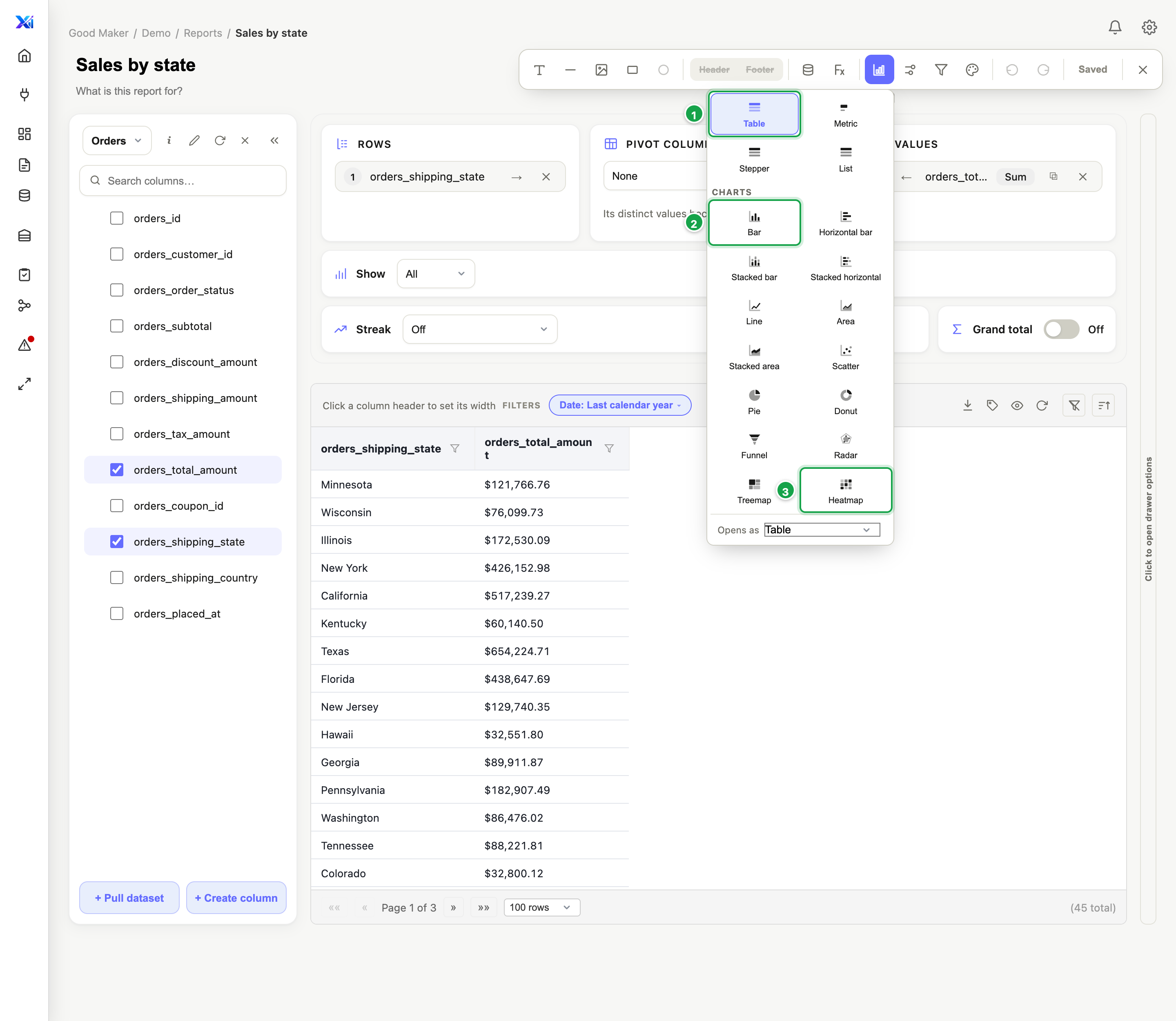
| # | What it is |
|---|---|
| 1 | Table: the rows as they are |
| 2 | The charts: bar, line, area, pie and more |
| 3 | Heatmap needs two grouping columns |
What a chart needs
At least one grouping column (in Rows) and one number (in Values). Otherwise you’ll see Nothing to chart. Total rows are left out on purpose.
- Heatmap 3 needs two grouping columns.
- With a pivot set, the chart uses the pivot’s rows.
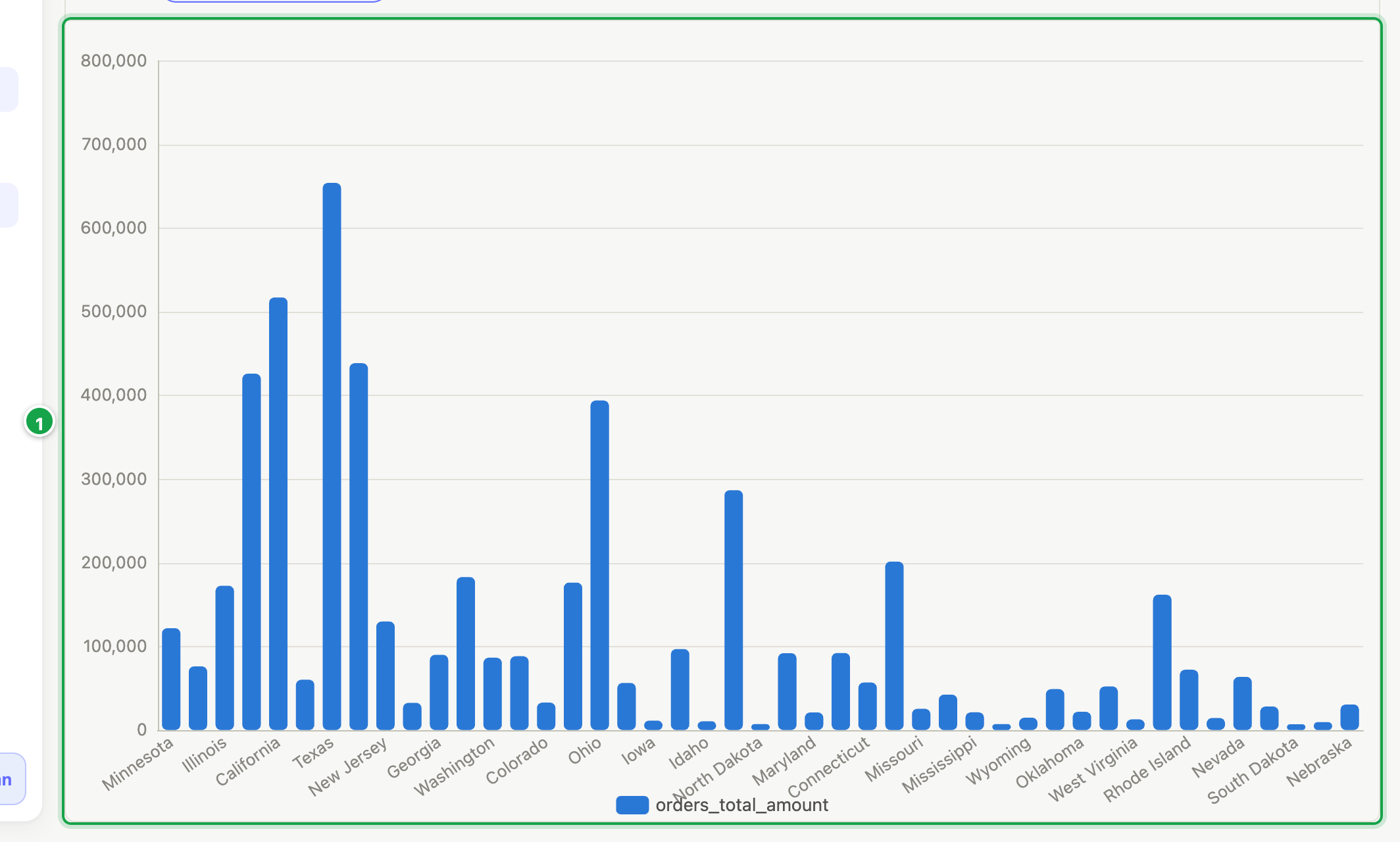
| # | What it is |
|---|---|
| 1 | The same rows, as a bar per state |
| To show | Use |
|---|---|
| Change over time | Line, Area |
| Compare categories | Bar, Horizontal bar |
| Parts of a whole (few parts) | Pie, Donut, Stacked bar |
| Drop-off through stages | Funnel |
| Relationship between two numbers | Scatter |
Which view opens by default
Picking a chart only changes your view right now. To make every reader open the report as a chart, in design mode set Opens as and save.
Exporting a chart
Exports are always the table of numbers behind the chart, not a picture of it. For a picture, put the report on a dashboard and use Export to PDF (05.7).
Next: 04.9 Row tags
Last updated 12 October 2026