
04.7 Formulas
A report can add calculated columns, such as margin, price per unit or order month. There are two kinds, and you choose where each one is worked out: in the database or in Analytics.
Both are written in the same formula language (like Excel). The kind decides where it is worked out, and Analytics never moves it.
| SQL formula | UI formula | |
|---|---|---|
| Worked out by | The database (Analytics translates it for your database) | Analytics, after the rows arrive |
| Can filter, group and pivot by it | Yes, a row formula | No (it’s not in the query) |
| Can use other formulas | No | Yes, other UI formulas |
| On total rows | The rows added up | Recomputed by default, so a margin % on the total row is the real total margin. You can choose otherwise: see On total rows |
| Best for | New groupings (order month, price band), and totals over millions of rows | Ratios and percentages: margin %, share |
Add one
- Toolbar SQL formula or UI formula. You can switch kind at the top 1.
- Name 2: e.g. margin.
- Expression 4: type it. Suggestions appear as you type (↑↓, Enter). The right side 5 lists Columns and Functions; click one to insert it.
- UI example:
(revenue - cost) / revenue - SQL example:
month(order_date), orsumif(status = "Paid", amount) - Inside a function’s brackets, the help under the box shows each argument (the one you are on highlighted), what it is and an example:
sumif(condition, value): condition is which rows to add, value is what to add up. Every function is in the 04.13 Function reference, and in the Functions tab. - An SQL formula shows the SQL it runs as on your database. If it can’t be written in SQL (
trunc,$thisrow), it says so and can’t be added; make it a UI formula instead.
- UI example:
- UI formula only: Data type 3: Number, Text or Boolean.
- Add formula 6.
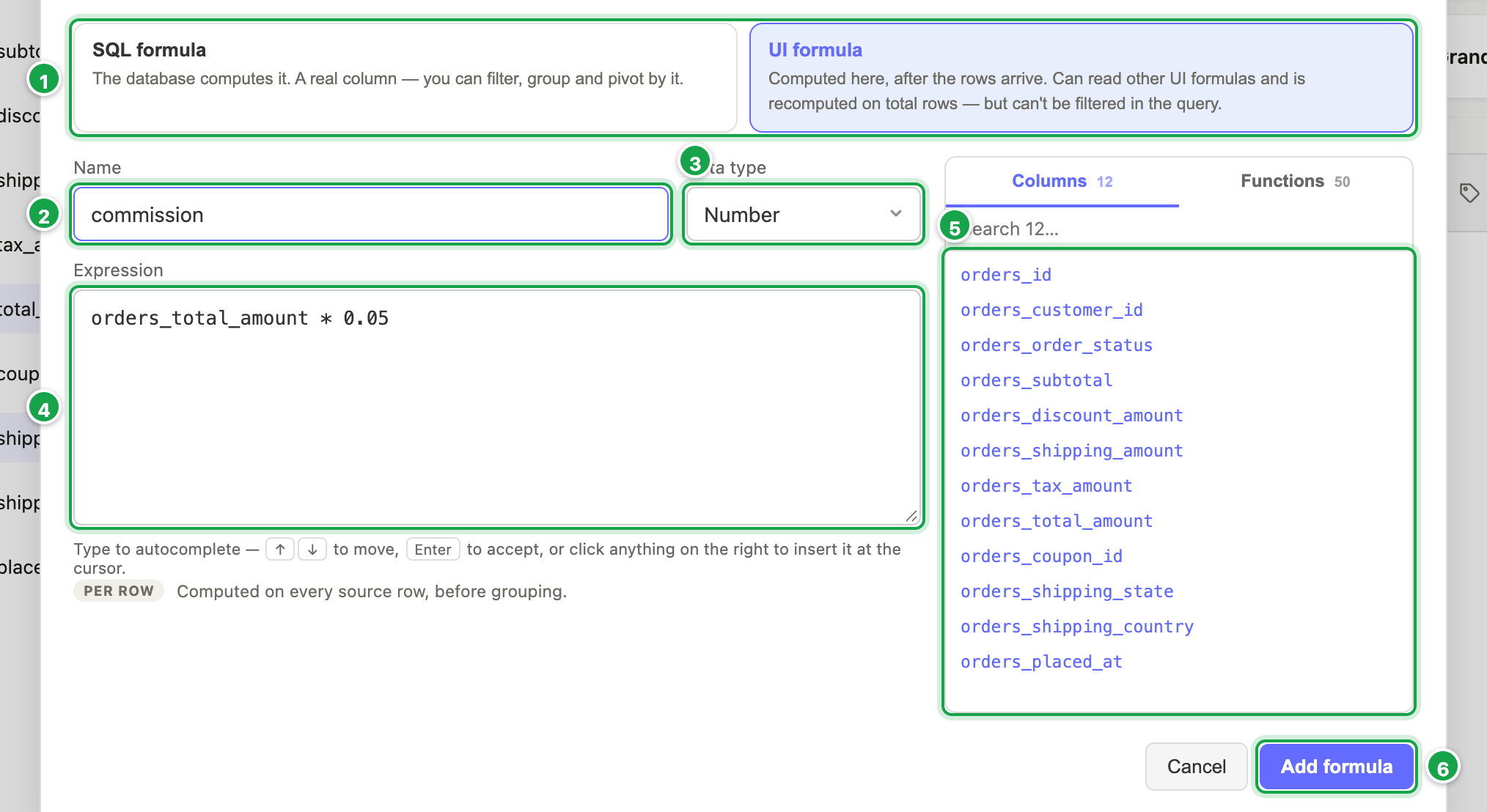
| # | What it is |
|---|---|
| 1 | SQL formula or UI formula: where it is worked out |
| 2 | Name |
| 3 | Data type: Number, Text or Boolean (UI formula) |
| 4 | Expression, with suggestions as you type |
| 5 | Columns and Functions to insert, with a search |
| 6 | Add formula |
Row formula or group formula
Every formula is one or the other. Analytics tells you which as you type, and labels it ROW or GROUP in the column list:
- Row formula: one value per row, e.g.
price * quantity. - Group formula: one value per report row, from a total:
sum,sumif,countiforcountifunique, e.g.sum(profit) / sum(revenue).
You can’t mix a plain column with a total in one expression. Wrap it, e.g. sum(profit).
A row’s own values beside a total need the total to say whose rows it covers, like Excel’s SUMIFS(…, Doc, A2): sumif(Document_No = $thisrow.Document_No and …, Quantity) is this row’s document’s total, and the formula stays a row formula. See 04.12 and the case study: count a row only when its group qualifies.
An SQL group formula and a UI formula can’t be in the same report. The database adds up an SQL group formula; a UI formula needs every row in Analytics. A report with both shows a message naming the two. Make one of them the other kind.
Preview. While you design, an SQL group formula is worked out over the first 500 rows only, and the report says so. Run works it out over every row.
To compare a row with its group (this state’s total, share of the state), use $thisrow inside sumif, countif or countifunique: see 04.12 Refer to the current row.
A cell that can’t be calculated shows #ERROR. Hover over it to see why.
On total rows
This is for UI formulas. An SQL group formula’s total rows are always its rows added up.
Sub-total and grand-total rows don’t always want the same thing from a formula. Click the formula’s column (in Values for a pivot, or its header in the grid) and pick On total rows:
| Choice | The total row shows | Use it for |
|---|---|---|
| Re-calculate the formula (default) | The formula worked out again over the whole group | Ratios and percentages: total margin % = total profit ÷ total revenue |
| Sum of the rows | The rows above, added up | A formula that decides row by row whether a row counts |
| Average of the rows | Their average | An average per row, e.g. average order score |
| Smallest row / Largest row | The lowest or highest row | Worst or best case |
| Leave blank | Nothing | A number that means nothing when totalled |
Example. Grouped by production order, this formula counts an order’s output only when that order consumed material:
if(sumif(entry_type == "Consumption", quantity) < 0, sumif(entry_type == "Output", quantity / 1000), 0)
Order D1 consumed and shows 2; order D2 returned material and shows 0. With Re-calculate, the grand total checks the consumption of all orders together and can count D2’s output too. With Sum of the rows, it is 2 + 0 = 2, which is what you meant.
The total adds up the rows shown, so after a Top N it matches what is on screen.
Change or remove
- SQL formulas are listed under SQL formulas in the left panel: Edit or ✕. If the query fails, the error points to the formula to check.
- An SQL formula written before 17 October 2026 is in your database’s own SQL. It keeps working as written, and its editor says so. Your administrator can convert these to the formula language; any that can’t be converted are listed for you to rewrite.
- UI formulas can’t be edited yet, only removed (click the column → Remove) and added again.
Next: 04.8 Charts
Last updated 17 October 2026