
03.2 Create a dataset and add tables
Start a dataset, place tables on the canvas, look at their data first, and build on other datasets.
Create it
- In the left menu, click Datasets, then + New dataset.
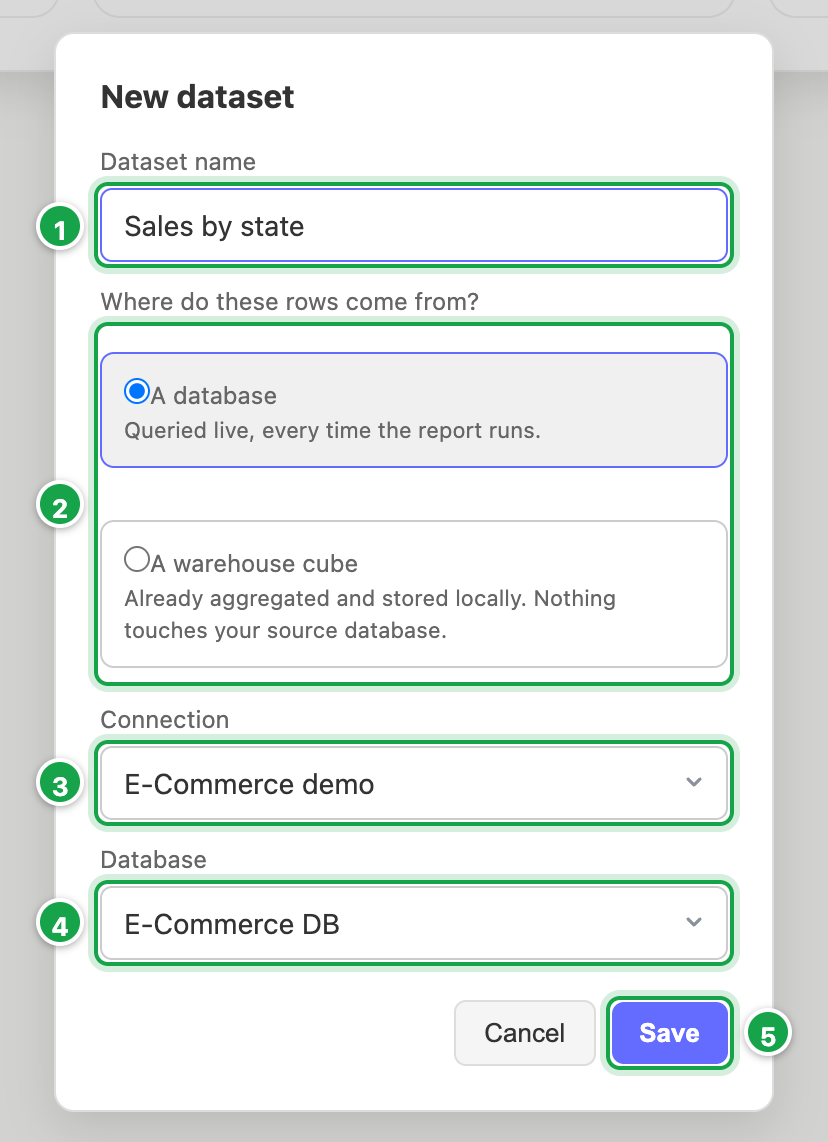
- Type a Dataset name 1.
- Under Where do these rows come from? 2 choose:
- A database: then pick the Connection 3 and Database 4, or
- A warehouse cube: then pick the Cube. Cubes that haven’t been built yet are greyed out.
- Click Save 5. The dataset opens in the builder.
| # | What it is |
|---|---|
| 1 | Dataset name |
| 2 | Where do these rows come from? A database, or a warehouse cube |
| 3 | Connection |
| 4 | Database |
| 5 | Save: creates the dataset and opens the builder |
The builder screen
| # | What it is |
|---|---|
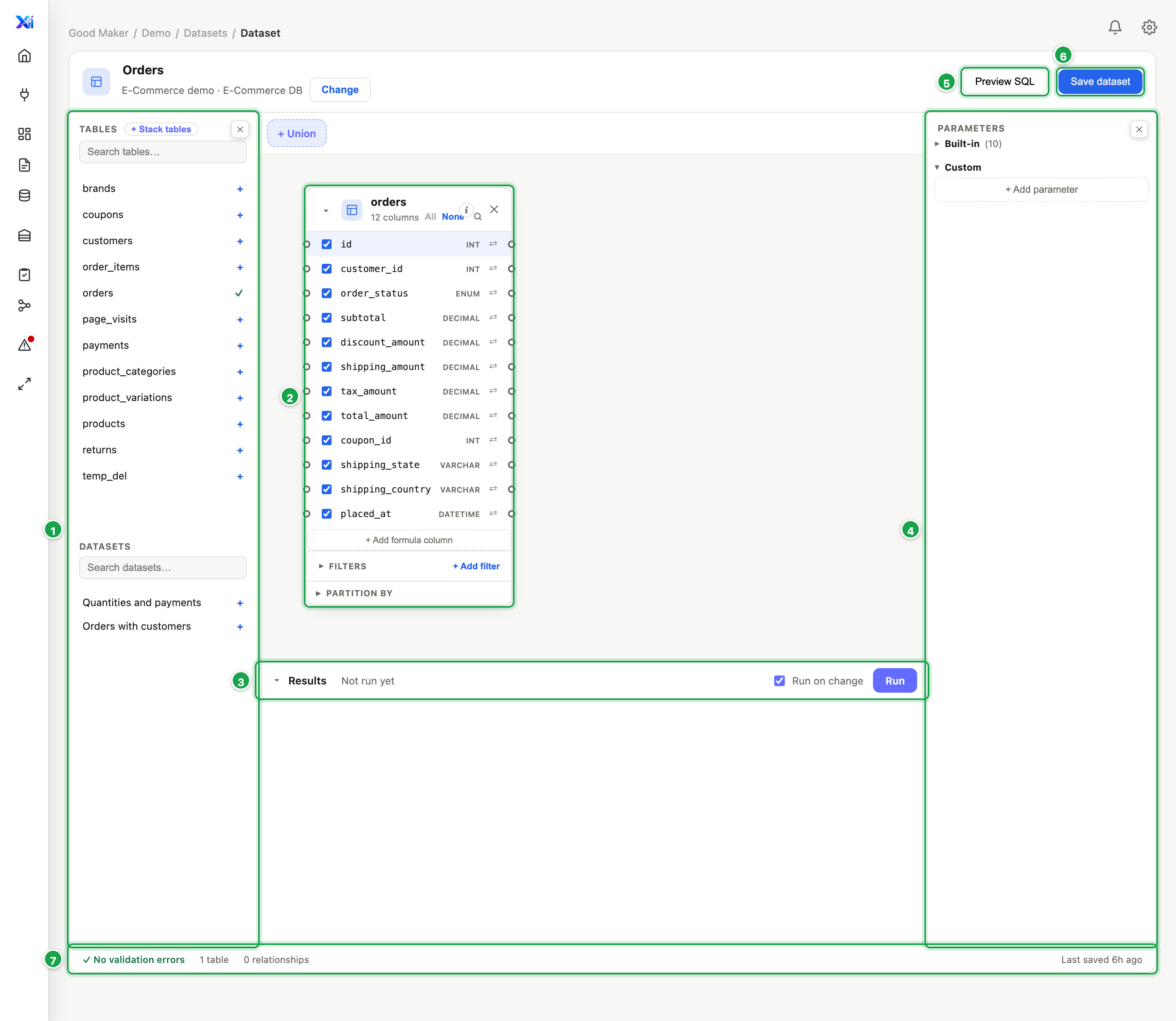
| 1 | Tables in the database. Click one to place it on the canvas. |
| 2 | A table on the canvas, with its columns |
| 3 | Results: the first 50 rows, as you build |
| 4 | Parameters, or Column Options when you click a column |
| 5 | Preview SQL: the query, and the warnings |
| 6 | Save dataset |
| 7 | Status bar: warnings, tables, relationships, last saved |
- 1 Left: the Tables in your database (and Datasets you can build on).
- 2 Middle: the canvas, where your tables sit, and 3 the Results panel underneath.
- 4 Right: Parameters, or Column Options when you click a column.
- Top right: Preview SQL 5 and Save dataset 6.
- 7 Bottom: the status bar, with warnings, number of tables and when you last saved.
The side panels can be closed with ✕ and reopened with the button on the edge.
Add tables
- Find a table in the Tables list (use Search tables…).
- Click it. It appears on the canvas as a card listing its columns.
- Drag a card by its header to move it.
A table already on the canvas shows ✓. Clicking it again adds a second copy (e.g. orders_2). That’s useful when you need the same table twice, such as ship-to and bill-to addresses.
Remove a table: click ✕ on its card. This happens immediately, with no question, and also removes its joins.
Look at a table’s data first
Click i next to a table (in the list or on its card) to see its first 200 rows. This shows the raw table, before any of your filters or formulas.
Build on another dataset
Under Datasets on the left you’ll find other datasets on the same connection. Click one to use its result as if it were a table. Handy for reusing a dataset someone has already cleaned up.
Columns from another dataset don’t carry their type, so the Aggregate option (03.6) isn’t offered on them.
Change the database
Click Change under the dataset name. Switching database clears every table and join on the canvas, because they belong to the old database. Analytics asks before doing it.
Save often
The dataset builder has no undo and doesn’t warn you if you leave with unsaved changes. Click Save dataset whenever you reach a good point.
Next: 03.3 Join tables
Last updated 12 October 2026