
03.4 Choose and rename columns
Only the columns you tick end up in the dataset. Fewer columns means a smaller, faster dataset, and an easier one for report builders to use.
Choose columns
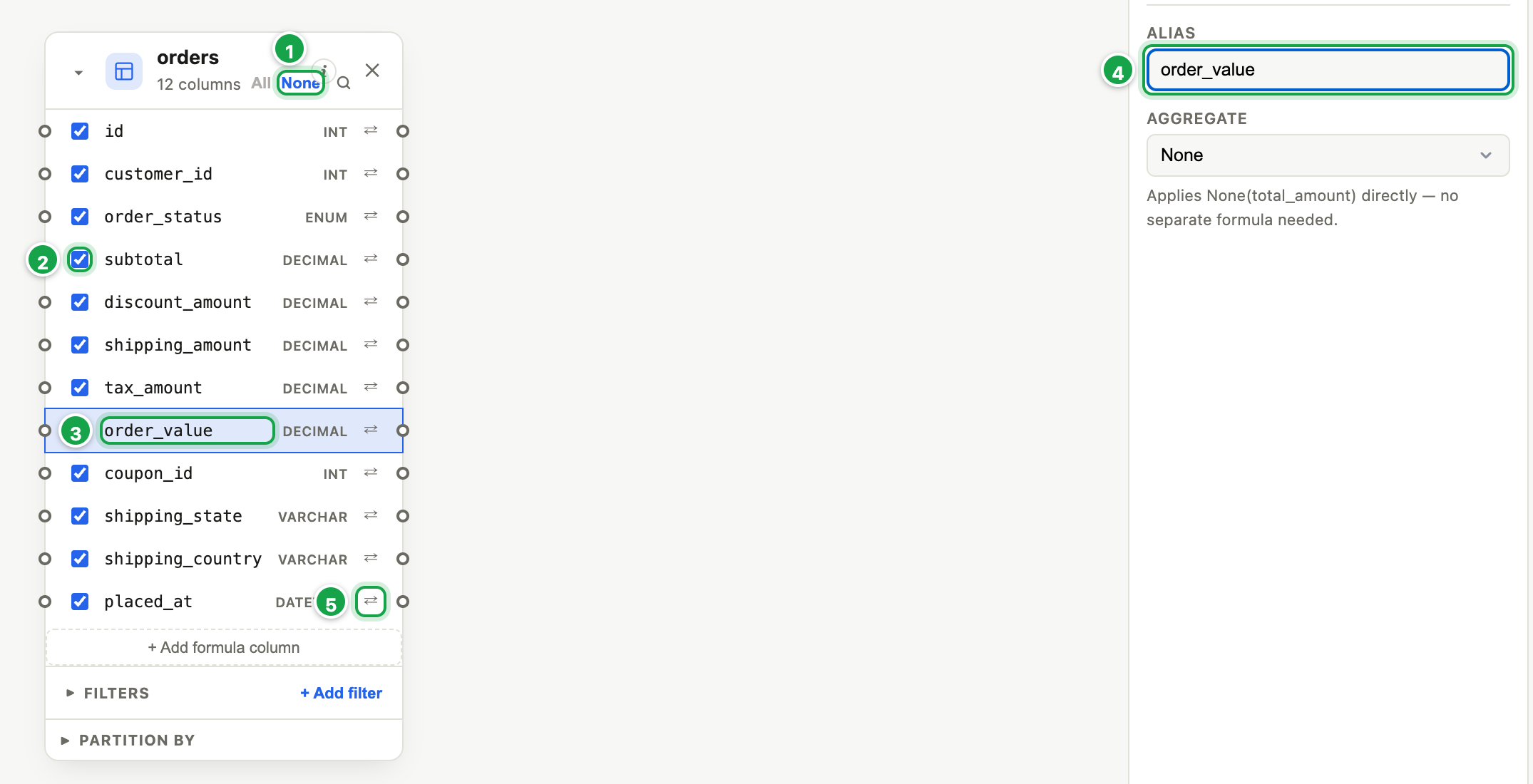
| # | What it is |
|---|---|
| 1 | All / None: tick or untick every column |
| 2 | Tickbox: include this column in the dataset |
| 3 | Click a column’s name to open its options |
| 4 | Alias: the name readers see |
| 5 | ⇄ Convert: year of a date, rounding, upper case… |
- Tick the box beside each column you want 2.
- All / None 1 at the top of a card ticks or unticks every column of that table.
- On a long table, click the magnifier and type to find a column. Searching only hides columns. It doesn’t remove them.
Rename a column
- Click the column’s name 3 (not its tickbox). Column Options opens on the right.
- Type the new name in Alias 4.
Use names your readers will understand, e.g. Order value instead of tot_amt_incl.
Remember the table name is added in front: alias value on orders comes out as orders_value.
Convert a column (⇄)
The ⇄ 5 next to a column offers quick conversions, such as the year of a date, rounding or upper case. Choosing one adds a new column next to the original, named e.g. order_date_year. The original stays.
After converting to a number (year, round…), click the new column and set Data type to number. Otherwise Analytics treats it as text and won’t offer to sum it.
Next: 03.5 Formula columns
Last updated 12 October 2026