
02.4 Move data between databases
A move copies rows from one place to a table somewhere else. The source can be a table, a query, a dataset or a stored procedure. You can run a move once, run it again whenever you like, or put it on a schedule.
Use a move when the data keeps changing at the source. For a one-off file, use 02.2 Import a file.
Where to find it
On the workspace Home page, under Data sources, click Move Data. You’ll see your saved moves. Click + New move to create one.
The five steps
1. Source: where the data comes from
- Pick the Source connection and Database 2. The five steps 1 are across the top, and what each step does 6 on the right.
- Choose What kind of source 3:
- A table: everything in one table
- A SQL query: anything you can SELECT (ask a technical colleague if needed)
- A dataset: one already built in Analytics on this connection
- A stored procedure (MySQL, SQL Server) or A table function (PostgreSQL)
- Pick or type the source 4, then click Sample the source 5.
A stored procedure is actually run when sampled. Anything it changes has already changed.
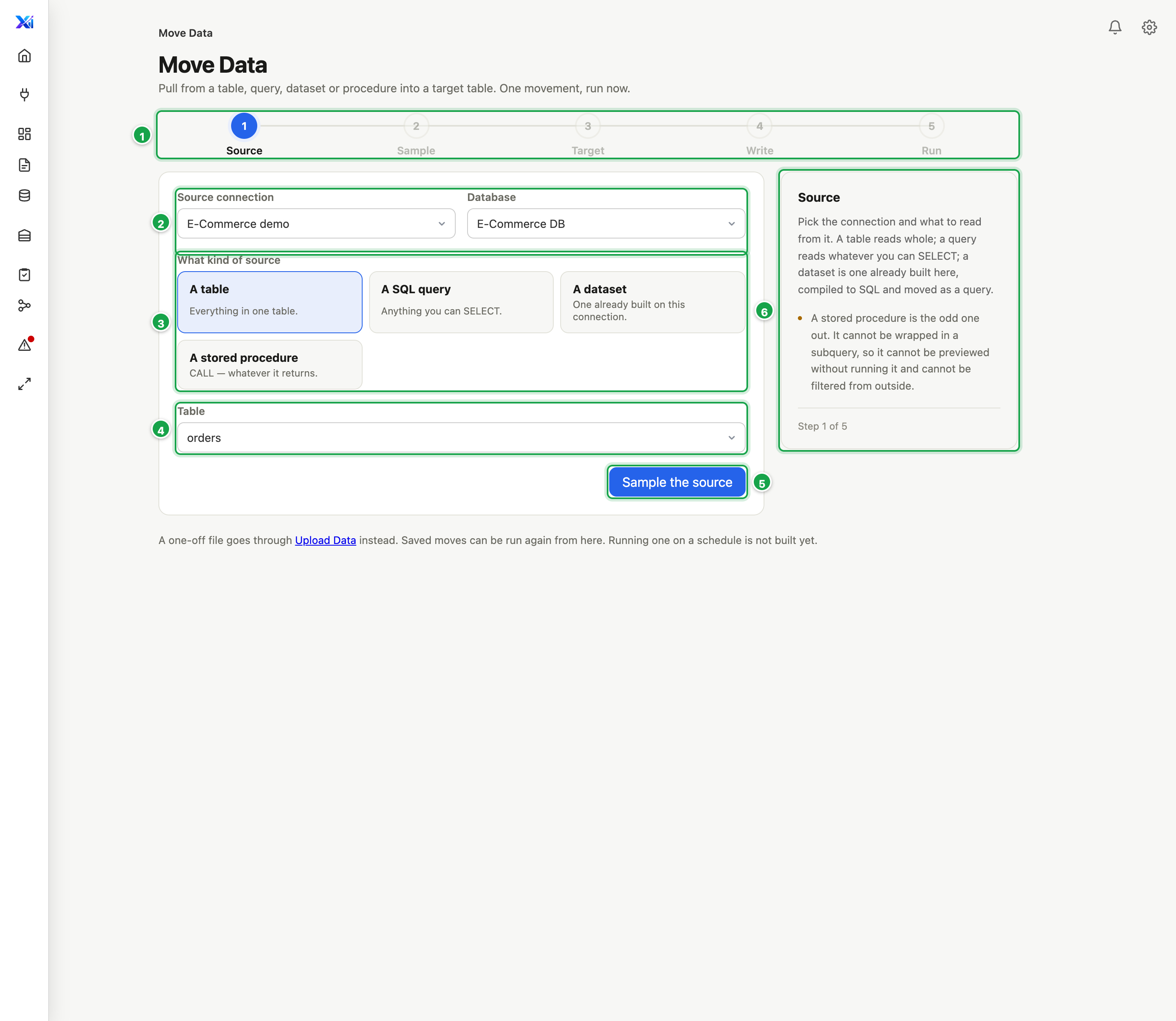
| # | What it is |
|---|---|
| 1 | The five steps: Source, Sample, Target, Write, Run |
| 2 | Source connection and Database |
| 3 | What kind of source: a table, a query, a dataset or a procedure |
| 4 | The Table |
| 5 | Sample the source |
| 6 | What this step does, in plain words |
2. Sample: check the data
You see the first rows and the column types. If it looks right, click Choose a target.
3. Target: where the data goes
- Pick the Target connection and Database 1.
- Pick an existing Target table 2, or type a new name to create one.
- In Columns 3, untick anything you don’t want moved, and rename target columns if needed.
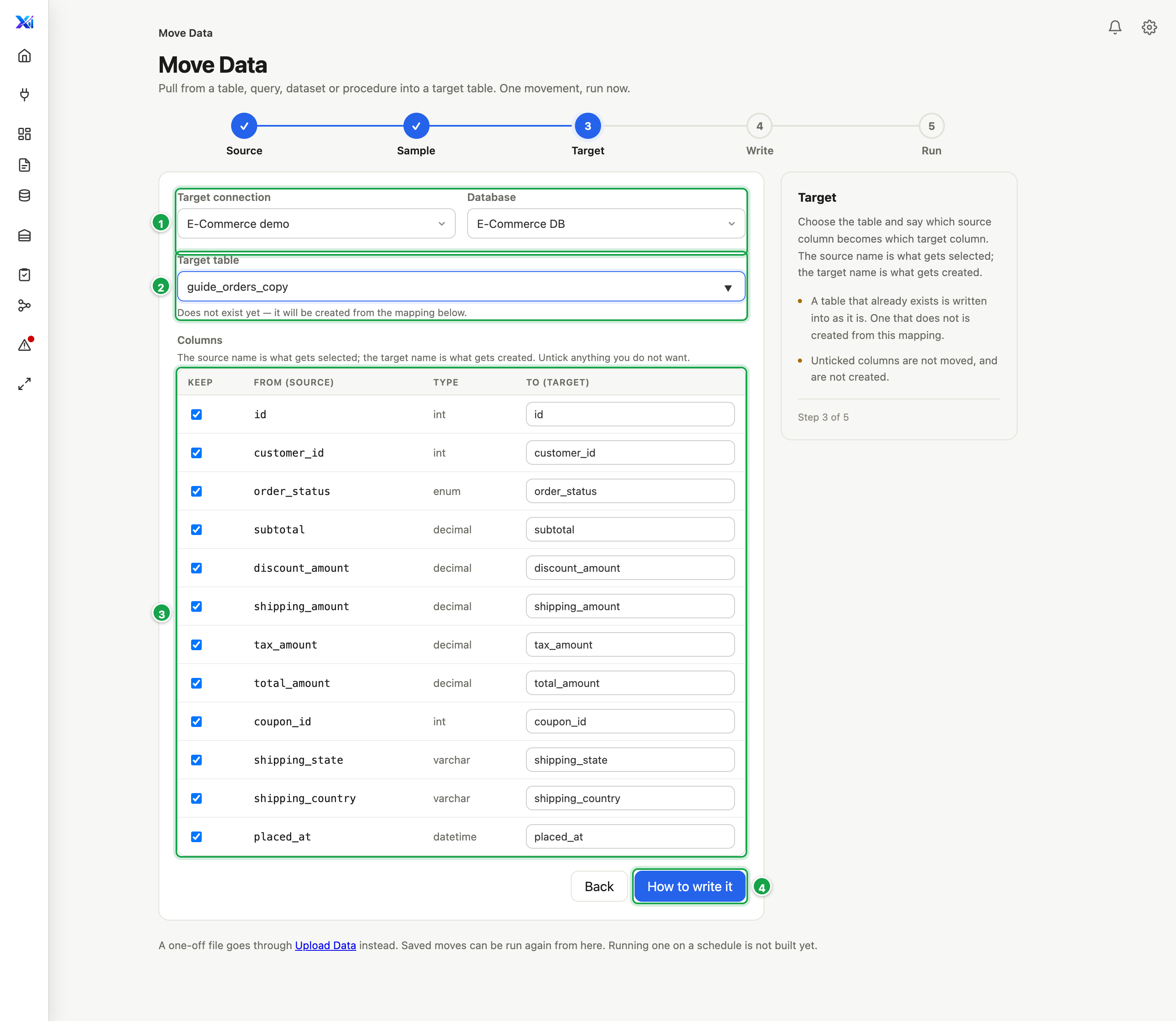
| # | What it is |
|---|---|
| 1 | Target connection and Database |
| 2 | Target table: an existing one, or a new name |
| 3 | Columns: untick what you don’t want; rename on the right |
| 4 | How to write it |
4. Write: how the data lands
Choose how it writes 1:
| Choose | What happens |
|---|---|
| Append | Rows are added. Nothing existing is touched. |
| Upsert | Rows whose Key matches are updated, new ones are added. You tick the key columns. |
| Replace | The target is emptied, then loaded. If the load fails, it stays empty until you run it again. |
Optional extras:
- Only part of it 2: always move this date range only. The start date is included, the end date isn’t.
- New rows are marked by 3: tick the column that goes up as rows are added or changed, such as updated at or an increasing ID. Tick more than one if no single column is stamped every time. It’s what lets a job pick up only new rows, and what Run for a range filters on (the first one ticked).
A move doesn’t decide when it runs or which rows each run takes. Its jobs do, see Running it on a schedule.
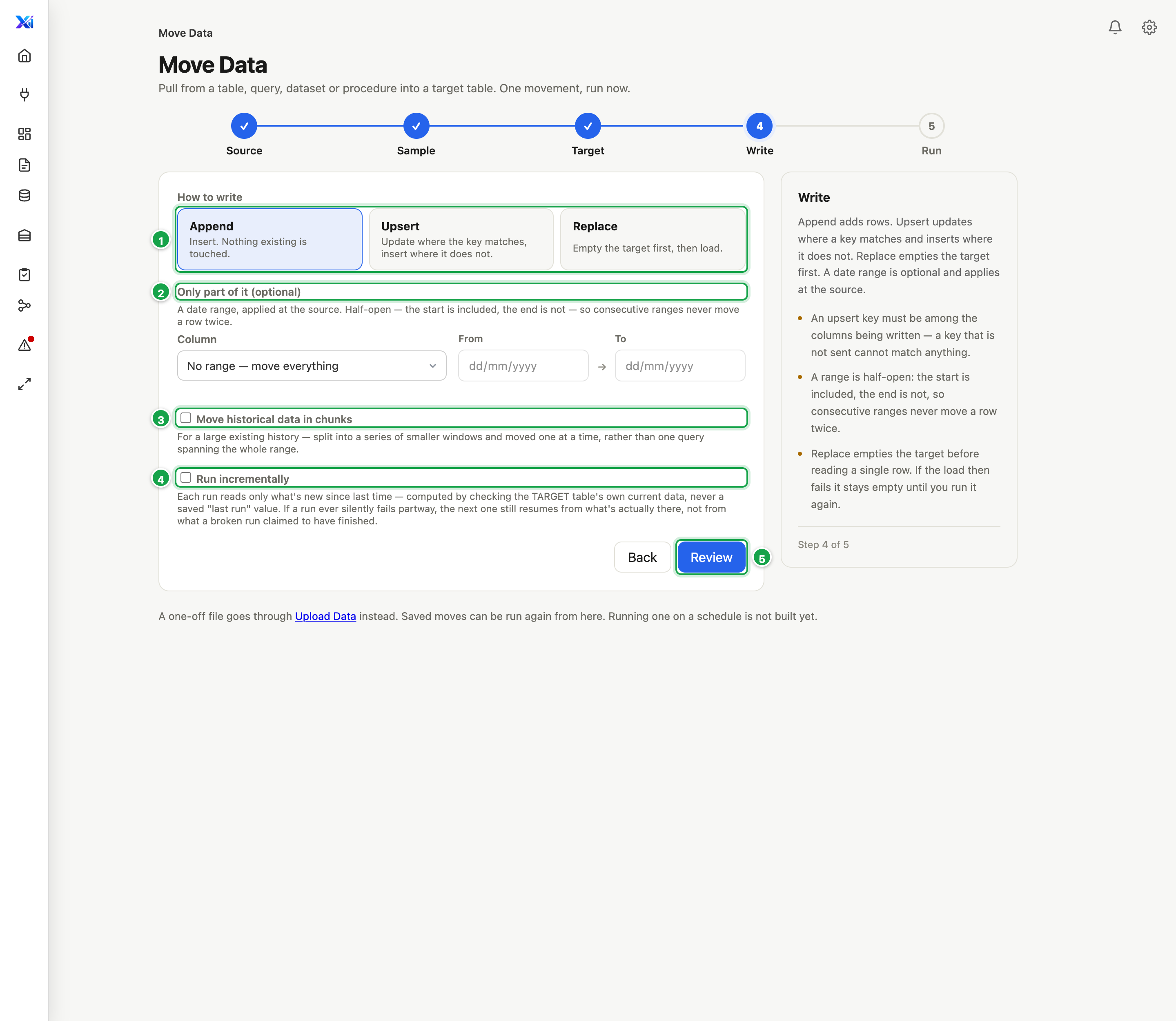
| # | What it is |
|---|---|
| 1 | Append, Upsert or Replace |
| 2 | Only part of it: a date range (optional) |
| 3 | New rows are marked by: the column that shows a row is new or changed |
| 4 | Review |
5. Run: name, go
- Check the summary 1.
- Give the move a Name 2.
- Click Save and run 3 (or Save to run later). Run moves everything the source has. On an Append move it asks first, because rows already in the target would be added again.
Anything still missing is listed under Not ready:.
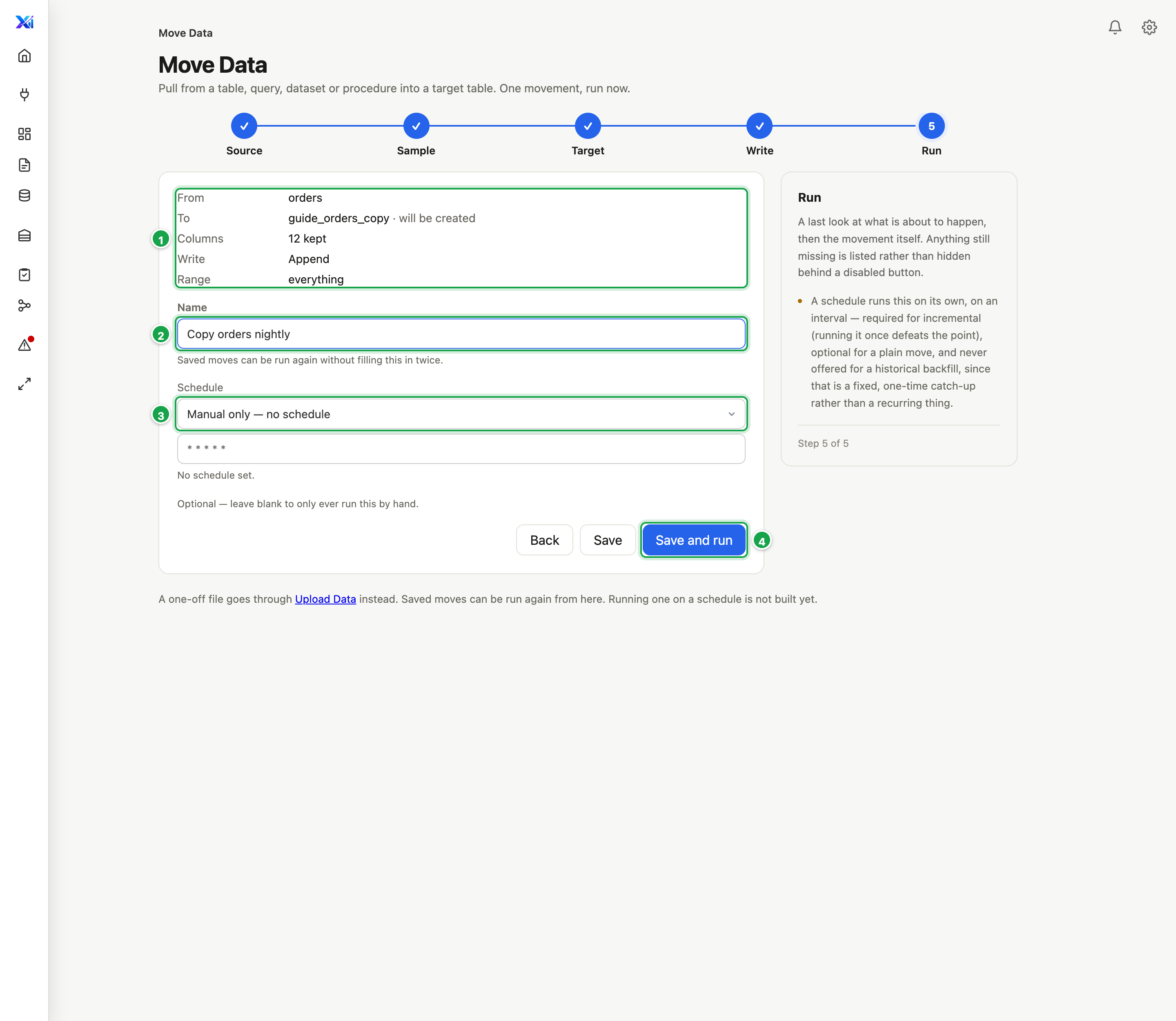
| # | What it is |
|---|---|
| 1 | The summary: from, to, columns, how it writes |
| 2 | Name: so it can be run again |
| 3 | Save and run |
Running it on a schedule
A job runs a move on a schedule, and decides which rows each run takes. Open a saved move’s Run step:
- Jobs that run it lists them, with when each runs and what it takes.
- + New job opens Jobs with a new job for this move already filled in. On its Schedule step, Each run takes is one of:
- Everything, each run
- Since the last successful run: each run covers from where the last successful one stopped, up to now. A failed run is picked up by the next one.
- Continue from what is already loaded: each run reads the highest value already in the target and takes everything after it. Nothing is lost if a run broke halfway or rows arrive late. Needs Upsert, unless you also set Also re-read the last … days.
A date range given when a job is started, by a workflow or by the job before it, is always the one used. See 07.1 Jobs.
Run for a range
On a saved move’s Run step, Run for a range moves exactly the dates you give it, once. Tick In chunks of to load a long history in pieces, such as one month at a time, so no single run is too big (at most 2,000 pieces). Nothing is saved. It filters on the first column ticked under New rows are marked by; a stored procedure gets the dates as start_date and end_date.
Saved moves
From the list you can:
- Run a move again. It moves everything; on an Append move it asks first.
- Open History to see recent runs, their row counts and Log.
- Roll back a run, which permanently removes the rows that run wrote. It’s not offered for Upsert runs.
- Edit or Delete the move. Deleting keeps the run history.
Good to know
- When you Edit a saved move, click Sample the source again before saving. Until you do, Save stays greyed out.
- A move made from a dataset copies the dataset as it was when you saved the move. If you later change the dataset, open the move and save it again.
- Moves read from database connections only. Moving data from files isn’t available yet.
Next: 02.5 Run your own SQL (SQL editor)
Last updated 18 October 2026