
02.3 Fix and re-upload dropped rows
When an import finishes with N dropped, the database refused those rows. Typical reasons are text in a number column, a date it can't read, or a required value that's empty. The rest of the file was loaded. Here's how to get the missing rows in.
1. See what was dropped
Click View next to N dropped on the import result, or View dropped in Import history.
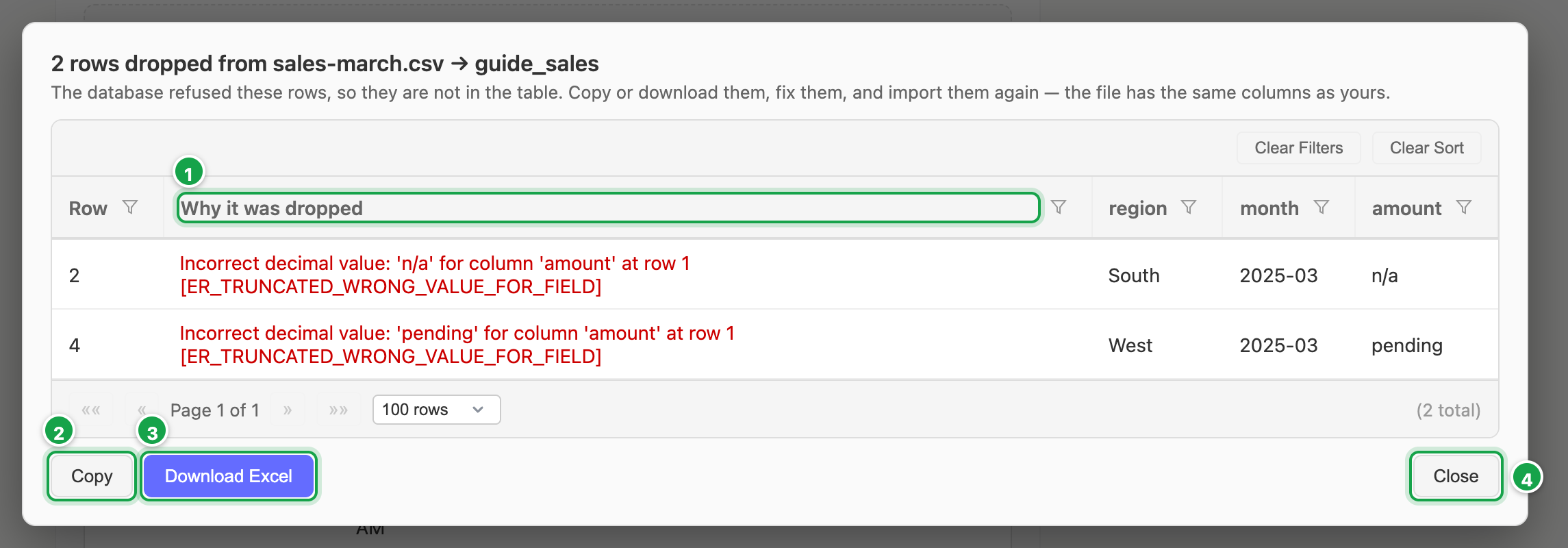
The window lists each refused row with:
- Row: its row number in your file
- Why it was dropped 1: the database’s reason
- the row’s own values, in your file’s columns
| # | What it is |
|---|---|
| 1 | Row and Why it was dropped, then the row’s own values |
| 2 | Copy: paste straight into Excel |
| 3 | Download Excel: every dropped row |
| 4 | Close |
2. Take the rows out
- Copy 2 copies the rows so you can paste them straight into Excel.
- Download Excel 3 saves them as
- dropped rows.xlsx . Use this for large numbers of rows: the window shows up to 1,000 rows, but the download holds all of them.
3. Fix and import again
- Correct the values in Excel, using the Why it was dropped column as your guide.
- Delete the Row and Why it was dropped columns, so the file has the same columns as your original.
- Import it with Append into the same table (see 02.2 Import a file).
Good to know
- If an import hits too many failures in a row, Analytics stops recording them and tells you only some were kept. In that case, fix the common problem in the original file and import again.
- Imports done before this feature existed show These rows were not kept. Import the file again to see them.
- The dropped rows are kept for you behind the scenes. They don’t appear in the table lists when you build datasets.
Next: 02.4 Move data
Last updated 12 October 2026