
04.11 Sort orders
Put a column's values in your own order (Int Generation before Consumption, paid before shipped) instead of A to Z, without a formula. Make the order once and use it in any report or widget.
A grouped column normally sorts A→Z. A sort order is your own order for its values. You make it once on the Sort orders page and pick it in any report or dashboard widget. It applies to the table, its subtotals, pivot columns, the dashboard and the Excel and PDF exports.
Months, weekdays and quarters are built in. A column of month names (January, February…) already sorts as months, with nothing to set.
Make a sort order
- In the left menu, open Sort orders.
- Click New sort order 1.
- Type a Name 3, e.g. Order status flow.
- Add the values:
- type one and click Add, or
- click Paste a list 6 and paste them, one per line (a column copied from Excel pastes this way).
- Put them in order 5: drag a value by its ⠿ handle, or use ↑ and ↓.
- Click Save sort order 7.
Capitals and spaces don’t matter: PAID matches paid. Values that aren’t on your list come after the ones that are, A→Z. Empty values always come last.
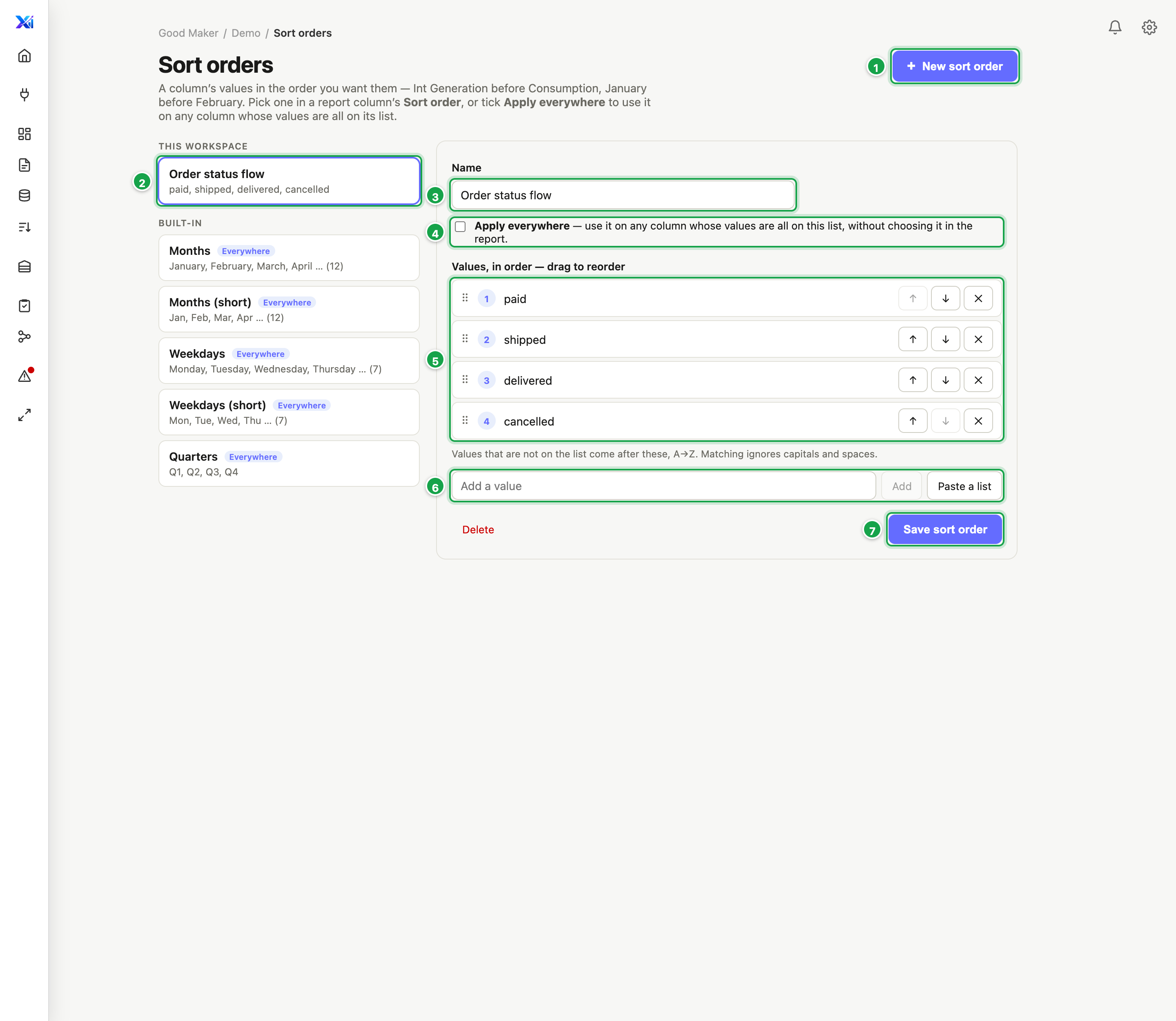
| # | What it is |
|---|---|
| 1 | New sort order |
| 2 | Your sort orders, then the built-in ones |
| 3 | Name |
| 4 | Apply everywhere: use it on any column whose values are all on the list |
| 5 | The values, in order: drag ⠿ or use ↑ ↓ |
| 6 | Add one, or Paste a list |
| 7 | Save sort order |
Apply everywhere
Tick Apply everywhere 4 to use the sort order on any column whose values are all on its list, in every report, without picking it. A column with even one value that isn’t on the list keeps A→Z.
To use a different month order, e.g. a fiscal year from April, make your own and tick Apply everywhere. Yours is used before the built-in one.
Use it in a report or widget
- Open the report (or the widget) in design mode, grouped by the column (04.4).
- Click the column: its name in the pivot’s Rows box, or the column in the column list for a grouped table.
- Under Sort order 1, choose:
- Automatic: a built-in or Apply-everywhere sort order that fits the values, else A→Z
- Plain A→Z: always alphabetical, even for month names
- a sort order by its name
- Save the report. The rows follow the order 3.
New from this column’s values 2 opens the Sort orders page in a new tab with the values this column shows, ready to drag into order and save. Come back to the report and it’s in the list.
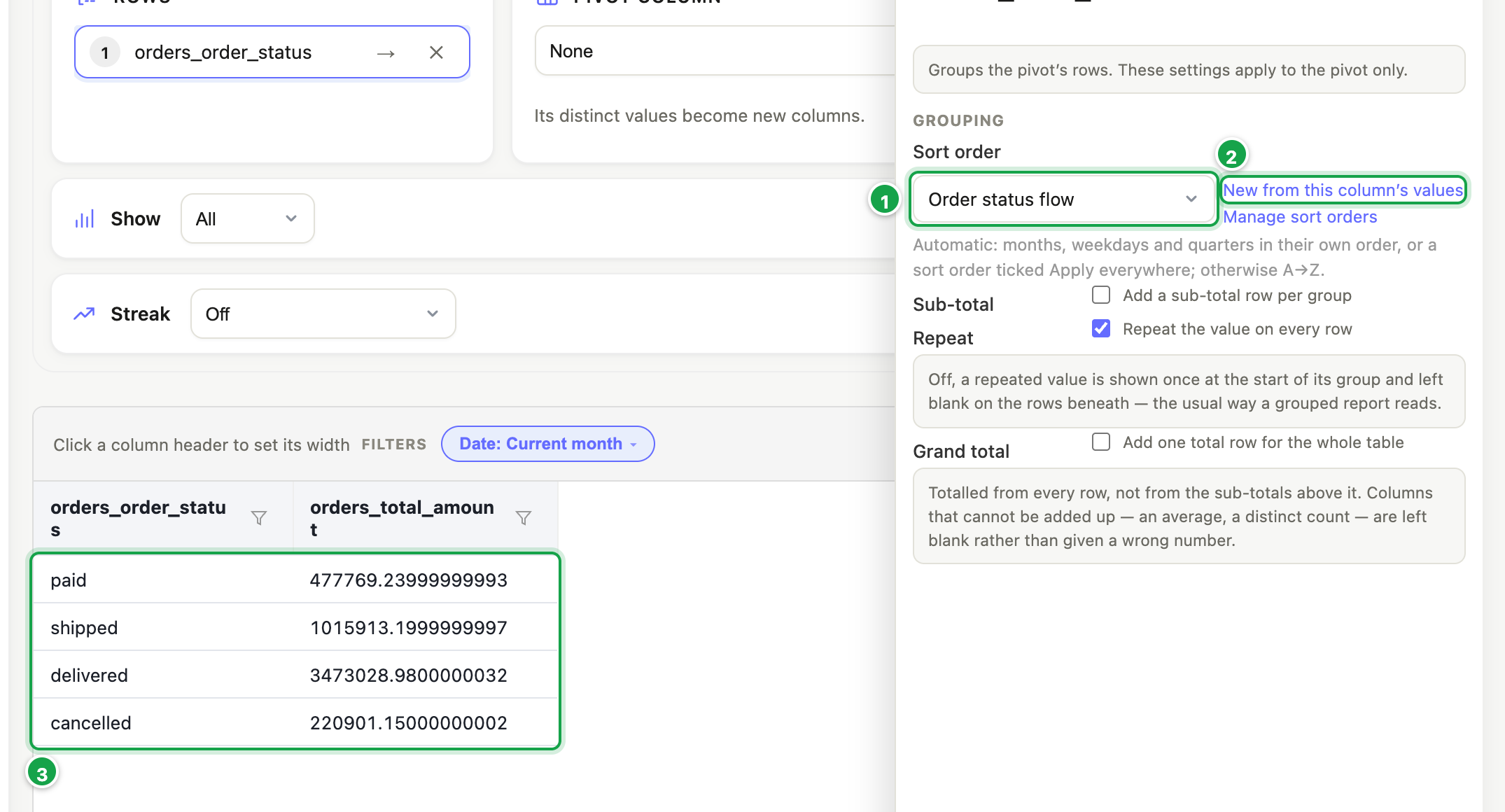
| # | What it is |
|---|---|
| 1 | Sort order: Automatic, Plain A→Z, or one by name |
| 2 | New from this column’s values |
| 3 | The rows, in that order: paid, shipped, delivered, cancelled |
If you also sort by this column (click its heading, Sort ↓), descending reverses your order.
Change or delete a sort order
Open it on the Sort orders page, change it and Save sort order. Every report and widget that uses it follows on its next run.
Delete is refused while a report or dashboard still uses the sort order. The message names them. Choose another sort order in those first, then delete it.
The built-in ones can’t be changed or deleted.
Last updated 14 October 2026