
03.8 Stack tables (union)
Stacking puts the rows of one table under another's, e.g. Sales 2025 and Sales 2026 into one list, or invoices and credit notes into one ledger.
There are two ways. Pick by how similar your tables are.
A. Same columns: + Stack tables
Use this when the tables have the same column names, e.g. one table per year.
- In the left panel, click + Stack tables.
- Tick two or more Tables or Datasets 1.
- Under Rows 2 choose:
- Union all — keep every row (the usual choice), or
- Union — drop duplicate rows.
- Give it a Name 3 and click Add union 4.
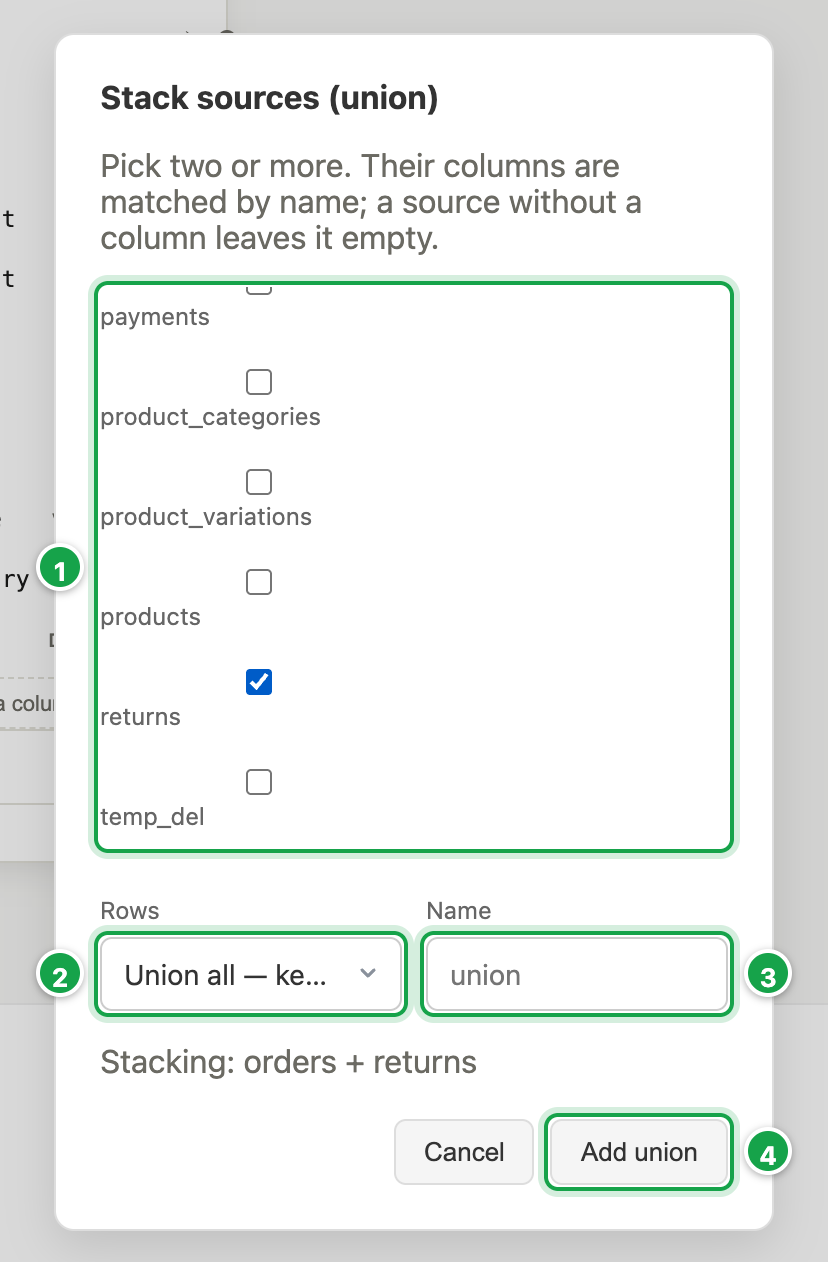
| # | What it is |
|---|---|
| 1 | Tick two or more Tables or Datasets |
| 2 | Rows: Union all (keep every row) or Union (drop duplicates) |
| 3 | Name of the stacked card |
| 4 | Add union |
You get one card holding all the rows. Columns are matched by name. If one table lacks a column, those rows are left empty in it.
B. Different shapes: + Union (parts)
Use this when each side needs its own joins, filters or formulas, or the column names differ.
- Build the first result on the canvas as usual. This is Part 1.
- Click + Union above the canvas. Part 2 opens, empty.
- Build Part 2 the same way: place tables, join, tick columns.
- Switch between parts with the tabs (Part 1 · 2 tables · 5 cols). For each later part choose UNION ALL (keep every row) or UNION (drop duplicates).
Parts are matched by position: column 1 of Part 2 goes under column 1 of Part 1, and so on. The result uses Part 1’s names. So:
- every part needs the same number of columns, and
- each position should hold the same kind of value (number under number, text under text).
Line up columns
Click Line up columns (it shows ⚠ when the counts differ).
- Each part is listed in its column order. Drag ⠿ or use ↑ / ↓ to reorder.
- Type in a box to rename a column. Renaming in Part 1 renames the result.
- Auto match moves every part’s columns to sit under Part 1’s column of the same name.
- Done applies, Cancel discards, Reset goes back to canvas order.
The dataset won’t save until every part has the same number of columns.
Worked example: quantity in one part, amount in the other
order_items has order_id, quantity. payments has order_id, amount. To stack them into one list of order_id, quantity, amount:
- Place order_items and tick order_id and quantity. Add a formula column amount =
0(Custom formula, Data type number), see 03.5. - Click + Union 1. Part 2 opens. Place payments and tick order_id and amount.
- In Part 2, add a formula column quantity =
04. - The tabs 2 switch between parts. Leave Part 2 on UNION ALL 3 to keep every row.
- Click Line up columns 5.
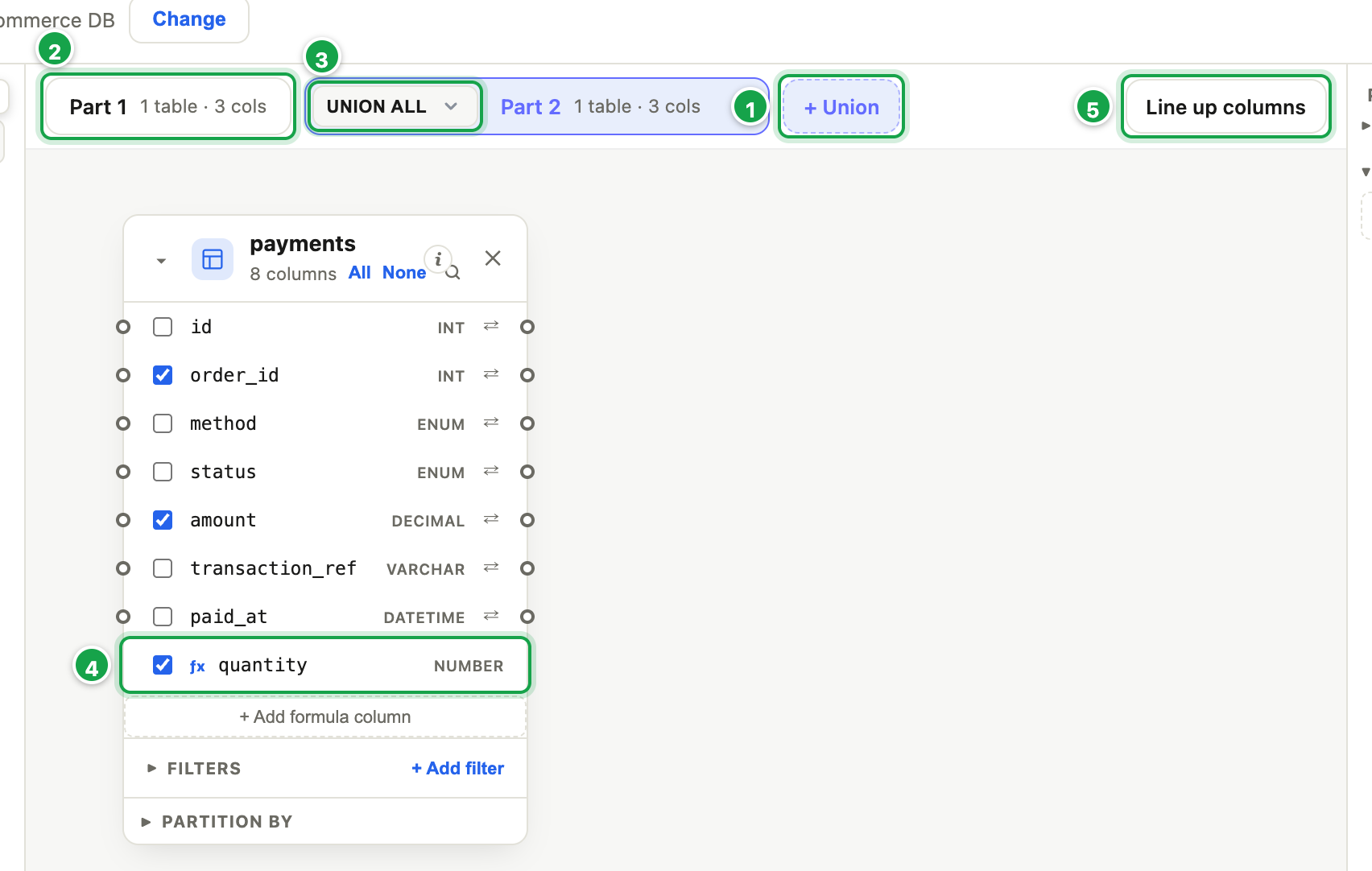
| # | What it is |
|---|---|
| 1 | + Union: add another part |
| 2 | The parts, one tab each. Click one to work on it. |
| 3 | UNION ALL keeps every row, UNION drops duplicates |
| 4 | A fixed 0 where this part has no quantity |
| 5 | Line up columns |
- Part 1 1 and Part 2 2 each list their columns. Click Auto match 3: both now read order_id, quantity, amount.
- Click Done 4, then check the Results.
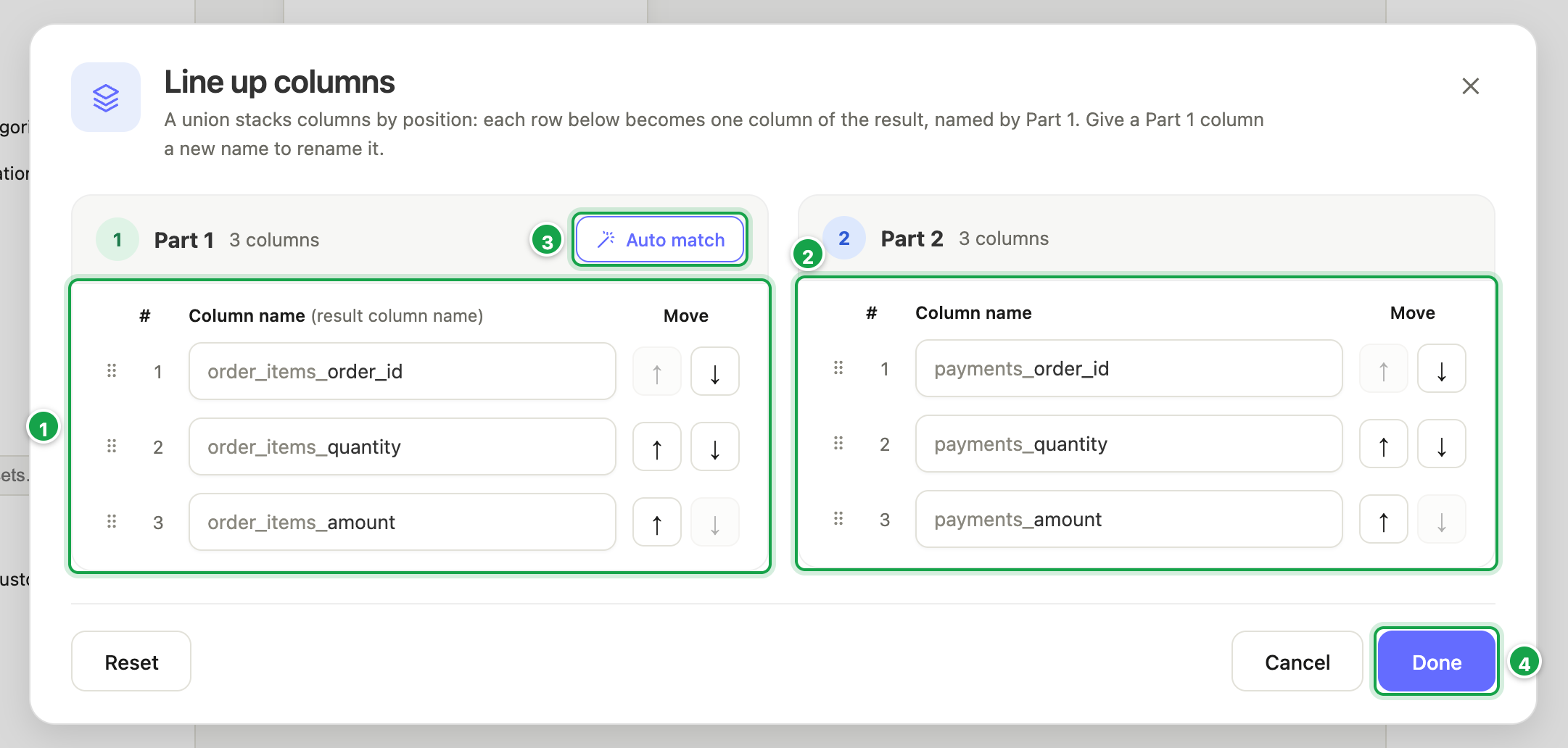
| # | What it is |
|---|---|
| 1 | Part 1: its names become the result’s |
| 2 | Part 2, stacked under it by position |
| 3 | Auto match: line every part up by name |
| 4 | Done |
Use 'N/A' (Data type string) for a text column, or NULL to leave it empty.
If a number sits under a text column, some databases refuse it. Make sure each position holds the same kind of value in every part.
Next: 03.9 Ranking columns
Last updated 12 October 2026