
02.1 Connect a database
A connection tells Analytics where your data lives and how to log in to it. Everything else (datasets, reports, dashboards) reads through a connection, so this is usually the first thing you set up.
You will need the database’s address, a username and a password. Ask your IT team for them if you don’t have them.
Add a connection
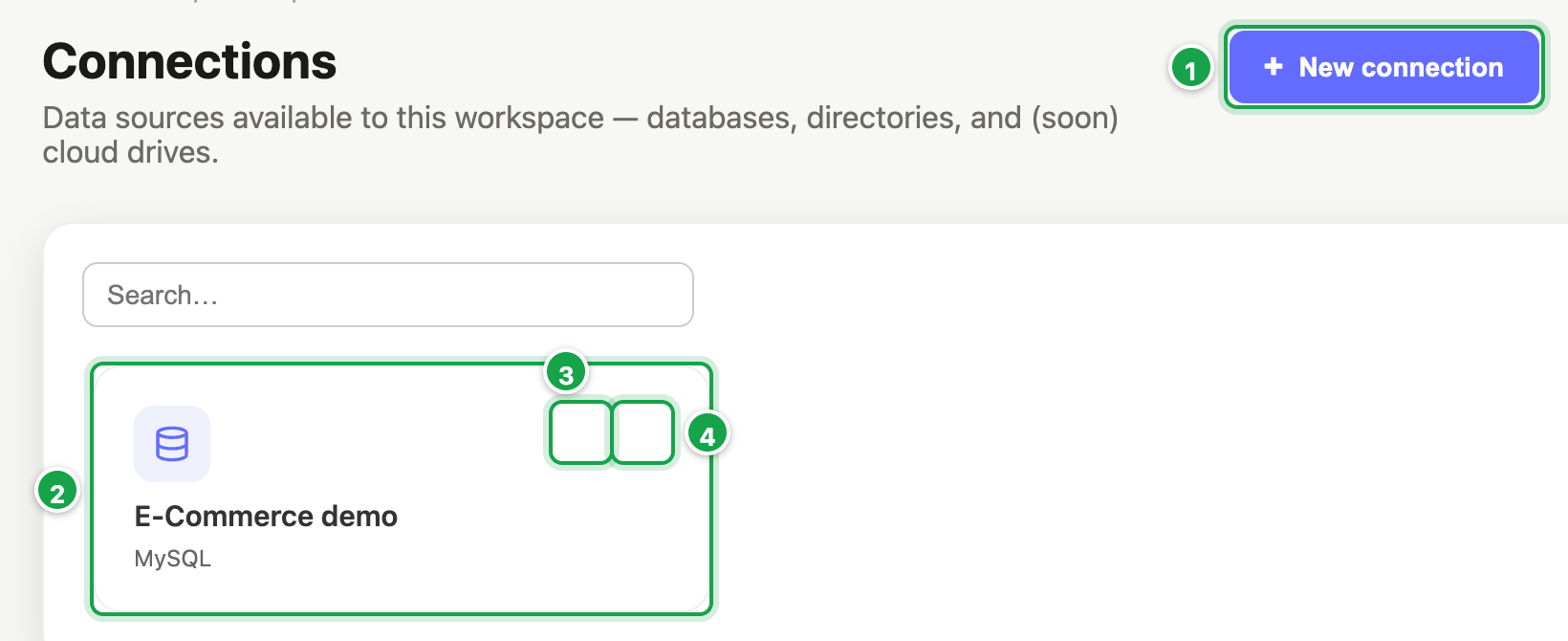
| # | What it is |
|---|---|
| 1 | + New connection |
| 2 | A connection. Click it to see its databases. |
| 3 | Pencil: Edit |
| 4 | Bin: Delete |
- In the left menu, click Connections (on the Home page the same tile is called Data Connectors).
- Click + New connection 1.
- Fill in:
- Connection name 1: any name your team will recognise, e.g. Sales database.
- Connection type 2: choose Database.
- Database type 3: PostgreSQL, MySQL or SQL Server.
- Host 4: the server’s address.
- Port: leave empty unless IT gave you one.
- Username and Password 5.
- Other options (JSON): leave empty unless IT asks you to add something here, such as
{"ssl": true}.
- Click Test Connection 6. Wait for Connected. If you see an error instead, check the details with IT.
- Click Save 7.
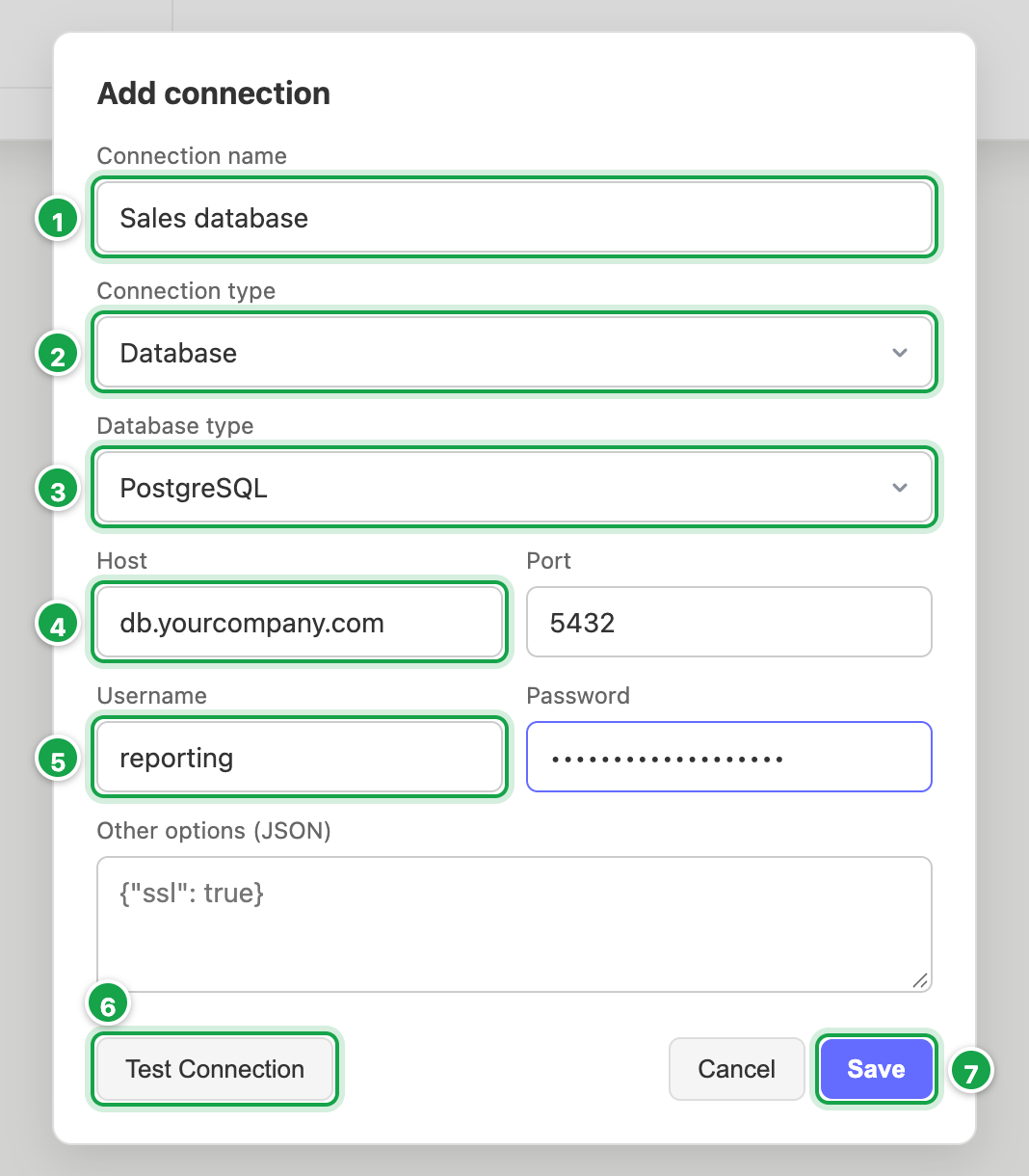
| # | What it is |
|---|---|
| 1 | Connection name |
| 2 | Connection type: Database |
| 3 | Database type: PostgreSQL, MySQL or SQL Server |
| 4 | Host and Port: from IT |
| 5 | Username and Password |
| 6 | Test Connection: wait for Connected |
| 7 | Save |
Add the databases you want to use
One server can hold several databases. Analytics only shows the ones you add.
- Click your new connection’s tile to open it.
- Under Databases, click + Add database 2.
- Type the Database name exactly as it is on the server. Optionally give it a friendlier Display label.
- Click Save. Repeat for each database you need.
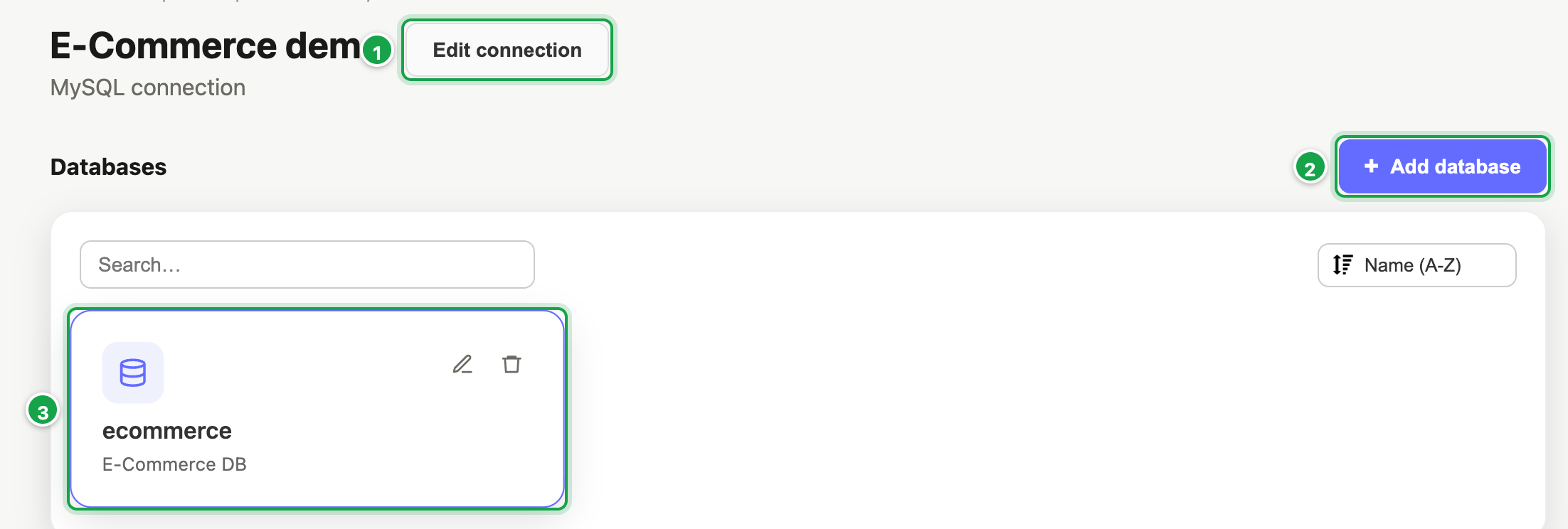
| # | What it is |
|---|---|
| 1 | Edit connection |
| 2 | + Add database: the name exactly as on the server |
| 3 | A database you can now build datasets on |
Change or remove a connection
- Change it: click the pencil 3 on its tile. The password fields show •••• unchanged. Leave them empty to keep the saved login, or type new ones to replace it.
- Remove it: click the bin 4 on its tile. This also removes its databases, and every dataset, move and import that reads from it stops working, so check with your team first.
Good to know
- Directory connections (a folder on the server) can be saved, but imports and moves do not use them yet. To load a file, use 02.2 Import a file.
- Google Drive and SharePoint are shown as coming soon. They can’t be connected yet.
Next: 03.1 What a dataset is
Last updated 12 October 2026