
03.9 Ranking columns
A ranking column numbers or totals rows within a group without merging them, e.g. rank of each product by sales within its region, or running total of sales per customer.
Add one
- On a table card, open Partition By and click + Add ranking column.
- Choose the Function 1:
| Function | Gives |
|---|---|
| RANK | 1, 2, 2, 4… (ties share a place, then skip) |
| DENSE_RANK | 1, 2, 2, 3… (ties share, no gaps) |
| ROW_NUMBER | 1, 2, 3, 4… (always unique) |
| SUM (running) | A running total |
| AVG (running) | A running average |
- For running functions, choose Of column (e.g. amount).
- Partition by 2: tick the columns that form a group. Numbering restarts for each one (e.g. region).
- Order by 3: click + Add order column and choose the order, e.g. amount DESC for biggest first.
- Give it an Alias 4 (required).
- Optional: Keep only where 5, e.g. ≤ 5 keeps the top 5 of each group.
- Save it.
It shows as a chip on the card. Click it to edit, ✕ to remove it.
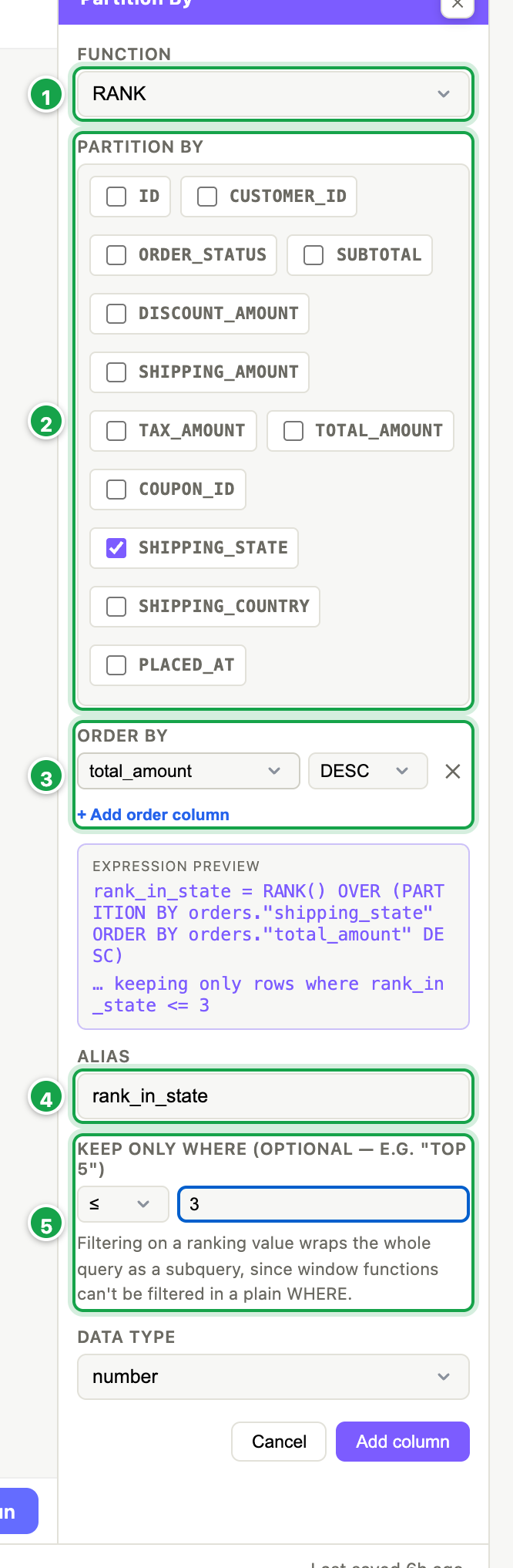
| # | What it is |
|---|---|
| 1 | Function: RANK, DENSE_RANK, ROW_NUMBER, running SUM or AVG |
| 2 | Partition by: numbering restarts for each state |
| 3 | Order by: biggest order first |
| 4 | Alias (required) |
| 5 | Keep only where: ≤ 3 keeps the top 3 of each state |
Example: top 3 orders per state
Function RANK, Partition by shipping_state, Order by total_amount DESC, Alias rank_in_state, Keep only where ≤ 3: the picture above.
Good to know
- The column is named exactly as its alias, with no table name in front.
- Ranking happens after filters, so a filtered-out row doesn’t take a place.
Next: 03.10 Preview and save
Last updated 12 October 2026