
05.3 Add and edit widgets
Add a widget, choose its columns and type, and understand why a dataset may be greyed out.
Add a widget
- In the designer, click + Widget on the toolbar.
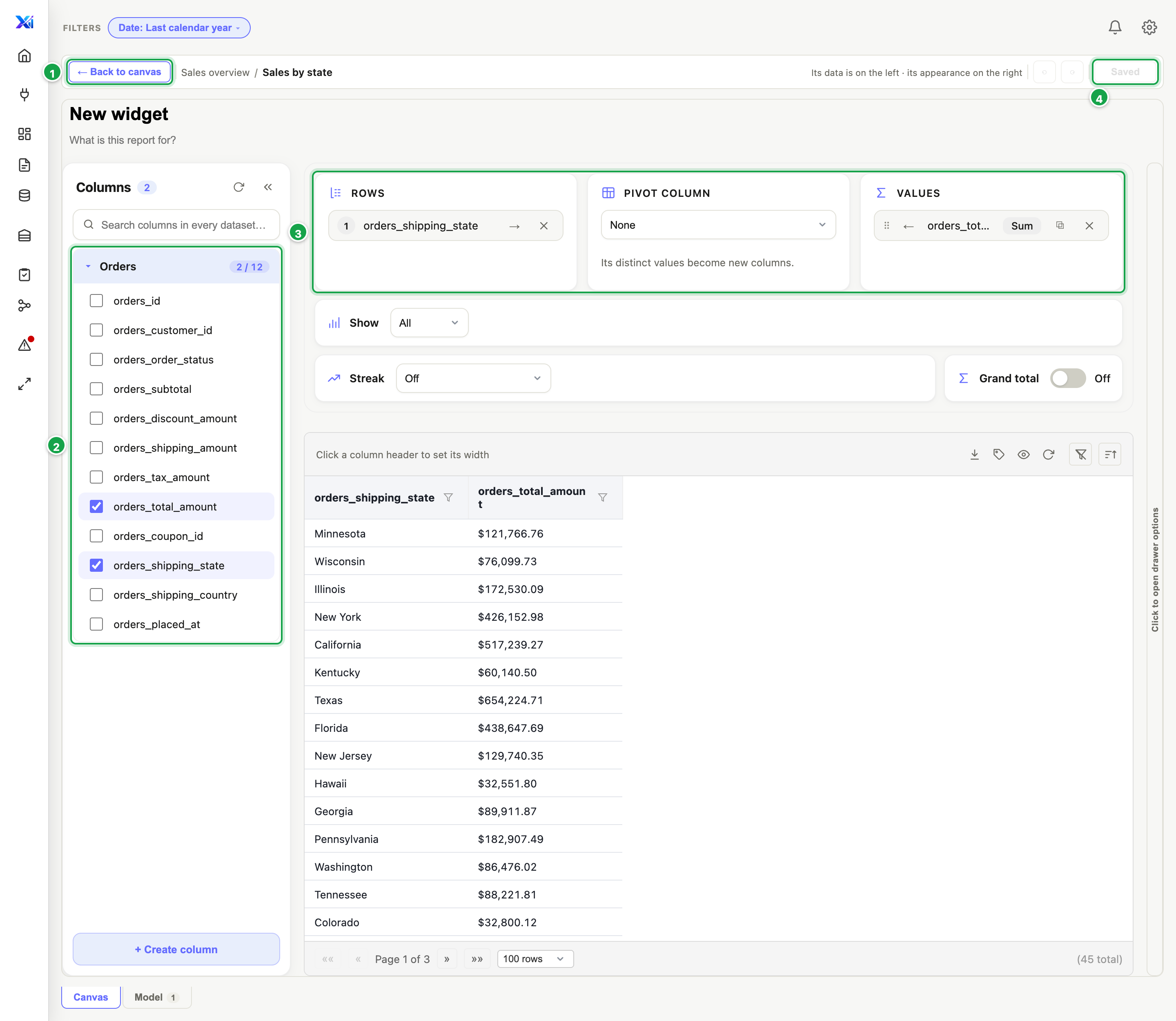
- The widget editor opens: its data on the left, its appearance on the right.
- Tick columns on the left 2. They come from the datasets in the board’s Model. The first column you tick also picks the dataset.
- Shape it 3 like any report: group, total, pivot, format. See 04 Reports.
- Pick its Type (see below).
- Click Save 4. This saves the widget and the board.
- ← Back to canvas 1.
Open a widget again by double-clicking it, or with ⚙ Configure this widget.
| # | What it is |
|---|---|
| 1 | ← Back to canvas |
| 2 | The model’s datasets and their columns. Tick to use one. |
| 3 | Rows, Pivot column, Values: as in a report |
| 4 | Save: the widget and the board |
Widget types
| Type | Use it for |
|---|---|
| Table | Rows as they are (the default) |
| Metric | One big number, e.g. Revenue this month |
| Stepper | Stages, and how far along something is |
| List | Each row as a box |
| Bar, Horizontal bar, Stacked bar, Stacked horizontal | Comparing amounts |
| Line, Area, Stacked area | Trends over time |
| Pie, Donut | Shares of a whole (keep to a few slices) |
| Funnel | Drop-off between stages |
| Scatter | Two measures against each other |
| Radar, Treemap, Heatmap | Profiles, proportions, intensity |
Why a dataset is greyed out
A widget is a single query, so some combinations aren’t allowed:
- A cube and a live database together: not possible in one widget.
- Two different databases: not possible in one widget.
- Two datasets with no link: add a link on the Model tab first (05.2).
Name and other settings
Click a widget once on the canvas to open its panel on the right:
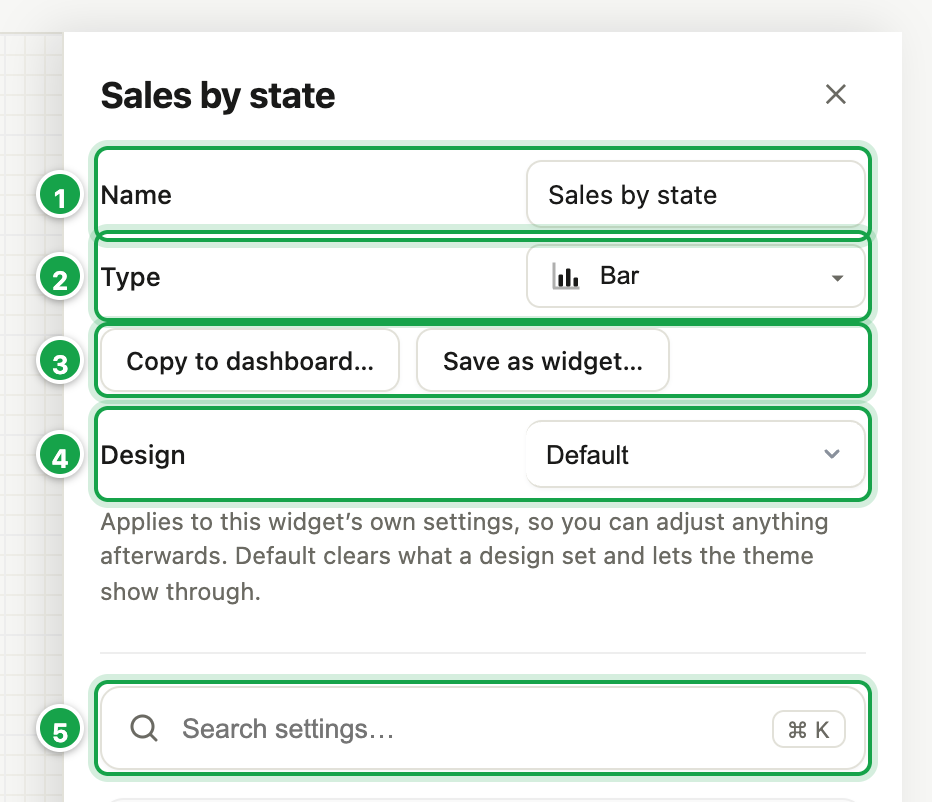
- Name 1: the widget only shows a title bar when it has a name.
- Type 2: change the chart type at any time.
- Copy to dashboard… and Save as widget… 3 (see 05.6).
- Design 4: Default or Minimalist.
- Search settings… 5 (Ctrl/⌘ K) finds any setting by name.
| # | What it is |
|---|---|
| 1 | Name: the card’s title |
| 2 | Type: table, metric, bar, line, pie… |
| 3 | Copy to dashboard… and Save as widget… |
| 4 | Design: Default or Minimalist |
| 5 | Search settings… (Ctrl/⌘ K) |
The date warning
If a widget doesn’t use the board’s date filter, it shows ⚠ and the panel says changing the date won’t affect it. That’s often a mistake, because readers may think the numbers are current. If it’s intended (e.g. All-time customers), tick This widget intentionally has no date reference.
Remove a widget
✕ Remove from this dashboard on the card, or select it and press Delete.
Next: 05.4 Style and highlight
Last updated 12 October 2026