
05.2 Create a dashboard
Create a dashboard, add the datasets it may use to its model, link them, and save.
1. Create it
- Dashboards → + New dashboard. A board called New dashboard opens in the designer.
- At the top, type its name 1 and, under it, What is this dashboard for?.
- Show title 2: untick it if readers shouldn’t see the name and description above the board.
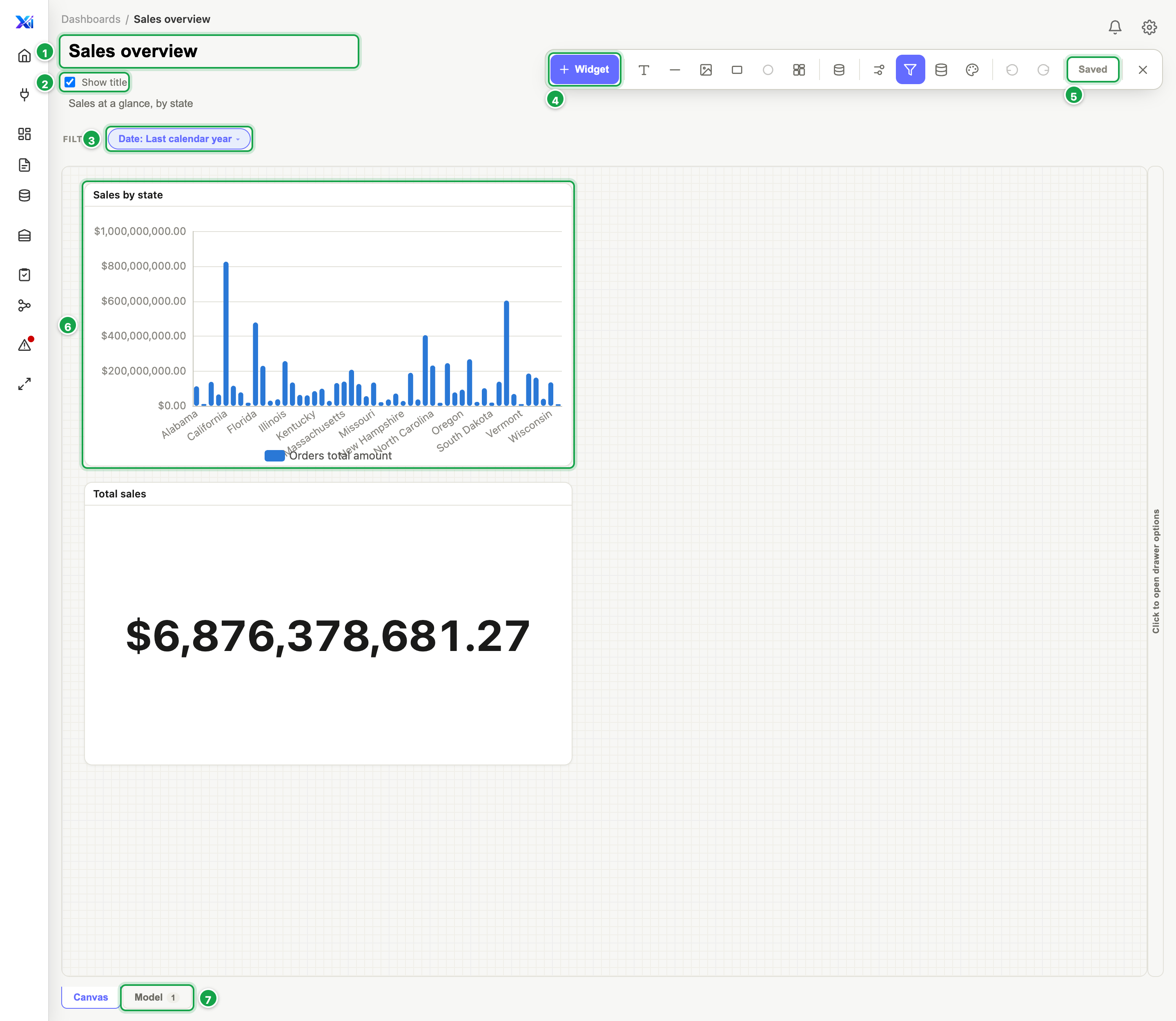
| # | What it is |
|---|---|
| 1 | The board’s name, and What is this dashboard for? under it |
| 2 | Show title to readers |
| 3 | The board’s filters |
| 4 | + Widget |
| 5 | Save: shows how many changes are waiting |
| 6 | A widget on the canvas |
| 7 | The Canvas and Model tabs |
2. Add datasets to the Model
Widgets can only use datasets that are in the board’s Model, so start here.
- Click the Model tab 7 at the bottom.
- Click + Bring a dataset (1 in the picture below) and pick one. No suitable dataset? + Create one takes you to Datasets, see 03.
- Optionally rename it for this board 2. The name box is just a label on this dashboard.
- Repeat for every dataset the board needs.
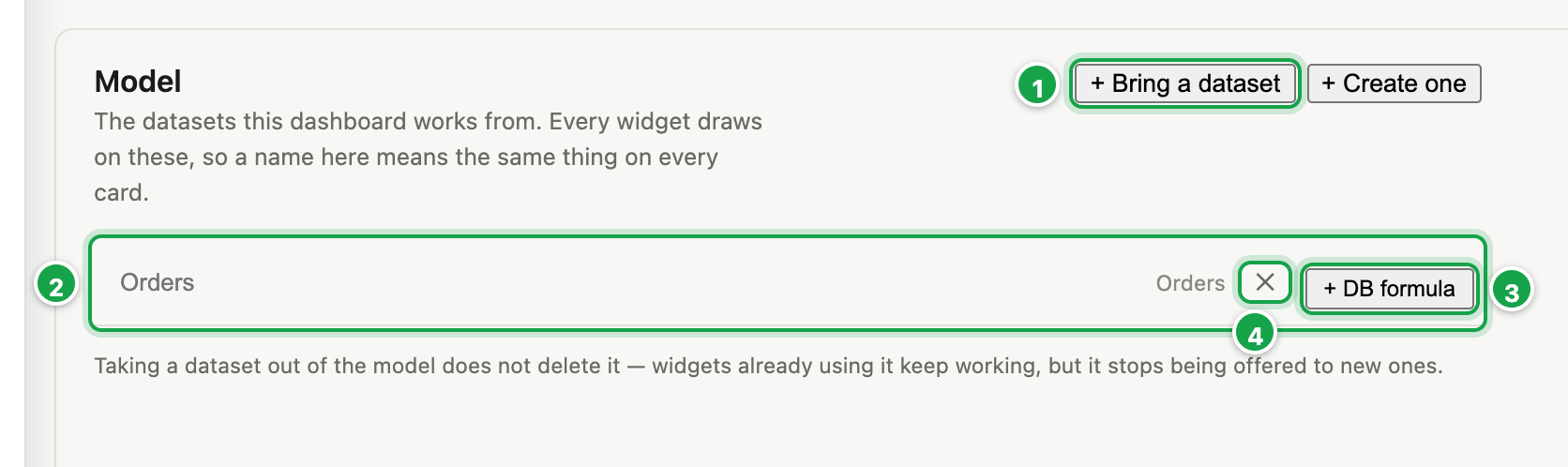
| # | What it is |
|---|---|
| 1 | + Bring a dataset |
| 2 | A dataset in the model: its name on this board, and a link to it |
| 3 | + DB formula: a calculated column every widget can use |
| 4 | ✕: take it out of the model |
Linking datasets
To let one widget use columns from two datasets (e.g. Sales and Targets), link them:
- Under Links, click + Link.
- Pick the first dataset and its column, the join type (left join, inner join, right join), and the second dataset and its column.
Without a link, a widget uses one dataset at a time. A link can repeat rows. If one target row matches many sales rows, a total of targets is counted several times. Link on columns that are unique on one side.
Formulas on the model
+ DB formula 3 on a dataset adds a calculated column that every widget on this board can use. It is an SQL formula: worked out by the database, in the formula language (see 04.7).
+ UI formula, beside it, adds one worked out by Analytics, after the rows arrive. A widget that uses it reads its rows, so use it for what SQL can’t do. A widget can’t have both an SQL group formula and a UI formula; its card says which two clash.
Each formula shows DB or UI, and row or group. Click it to edit, ✕ to remove.
Taking a dataset out
✕ 4 on a dataset removes it from this board straight away. Widgets that used its columns lose those columns. Analytics tells you how many were affected. The dataset itself isn’t deleted.
3. Add widgets
Back on the Canvas tab, click + Widget 4. See 05.3 Add and edit widgets.
4. Save
Nothing saves on its own. The Save button 5 shows how many changes are waiting (Save 3). Undo and Redo sit next to it.
Closing with ✕ while changes are unsaved asks Save before leaving?: Save and leave, Leave without saving, or Cancel.
If a colleague saved the same board meanwhile, your save is refused with a message to reload. Reload, then make your change again.
Next: 05.3 Add and edit widgets
Last updated 12 October 2026