
03.7 Filters and parameters
Keep only the rows you want, and use parameters like :region that a report or dashboard filter fills in.
Filters: keep only the rows you want
A filter on a dataset applies to every report built on it. Use it for rules that are always true, like leave out test orders or only active customers. Choices that change from report to report belong in the report (04.6).
Add a filter
-
At the bottom of a table card, under Filters, click + Add filter.
-
In Simple mode 1, pick a column 2, then a condition 3. The list depends on the column:
- Text: equals, does not equal, is any of, is none of, contains, does not contain, starts with, ends with, is empty, is not empty
- Number: equals, does not equal, is greater than, is at least, is less than, is at most, is between, is any of, is none of, is empty, is not empty
- Date: is on, is not on, is before, is after, is between, is empty, is not empty
-
Fill the value box 4: click it, then
- Value (or Date, on a date column): type it, or pick a day. For is any of, separate values with commas (
north, south). - Parameter: pick a parameter, such as the report’s
:start_date, a built-in like:today, or one of the dataset’s own. + New parameter… at the bottom makes a new one; it also appears under Parameters on the right.
For is between, fill both boxes, from and to.
- Value (or Date, on a date column): type it, or pick a day. For is any of, separate values with commas (
-
Click Add filter 5.
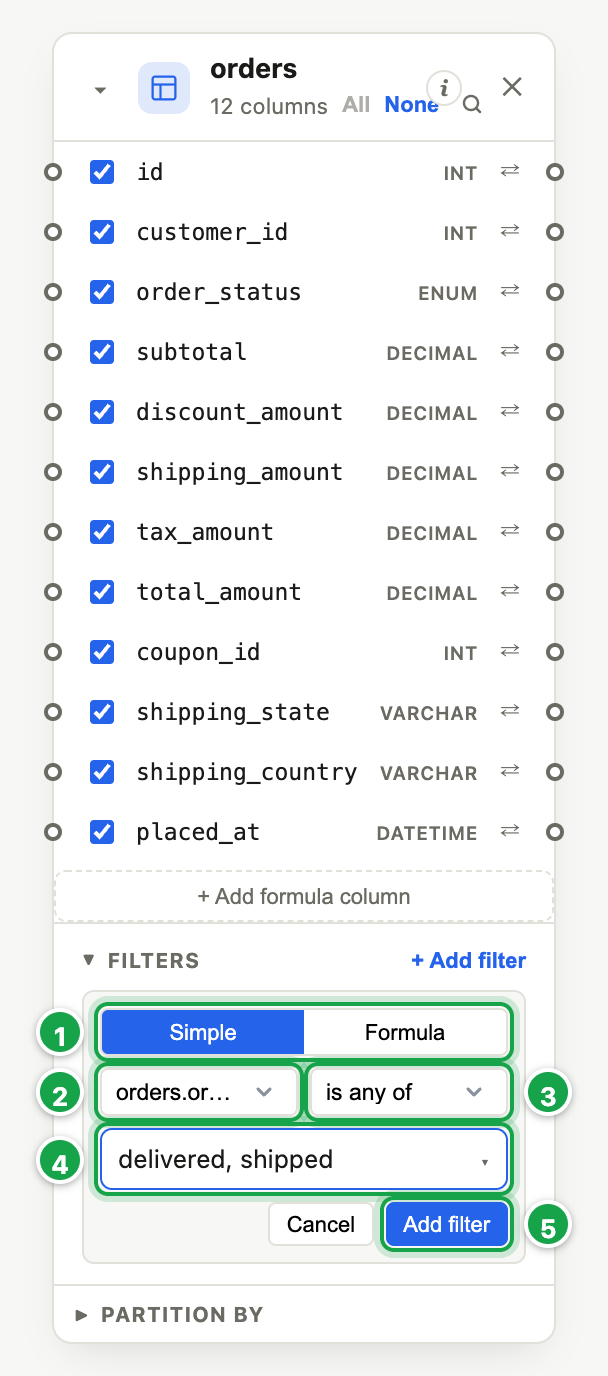
| # | What it is |
|---|---|
| 1 | Simple, or Formula to write the condition yourself |
| 2 | The column |
| 3 | The condition: the list suits the column (text, number, date) |
| 4 | The value box: click it to type a Value (or pick a Date), or pick a Parameter. For is any of, separate values with commas. |
| 5 | Add filter |
The filter shows as a chip on the card. Click it to edit, or ✕ to remove it.
Date conditions mean whole days: is between 1 Jan and 31 Jan includes all of 31 Jan.
All filters must be true together (AND), across all tables.
Formula mode
Formula lets you write the condition yourself, e.g. status not in ('expired','draft').
Parameters: values filled in later
A parameter is a named value, written with a colon like :region, that you use in a filter or formula instead of a fixed value. A report or dashboard filter can then supply it.
Ready-made parameters
Under Parameters → Built-in you’ll find dates Analytics works out for you:
:today, :today_ly (same day last year), :first_day_m (first of this month), :first_day_q, :first_day_y, :first_day_fy (financial year), :first_day_ly, :first_day_fyly, :month, :year.
Example: a date filter is after :first_day_y always means this year so far.
Your own parameters
- Click + Add parameter.
- Give it a Name 1 (e.g. state), a Type 2 (String, Number, Date) and a Default value 3. Click Add parameter 4.
- Use
:stateas a filter value or in a formula.
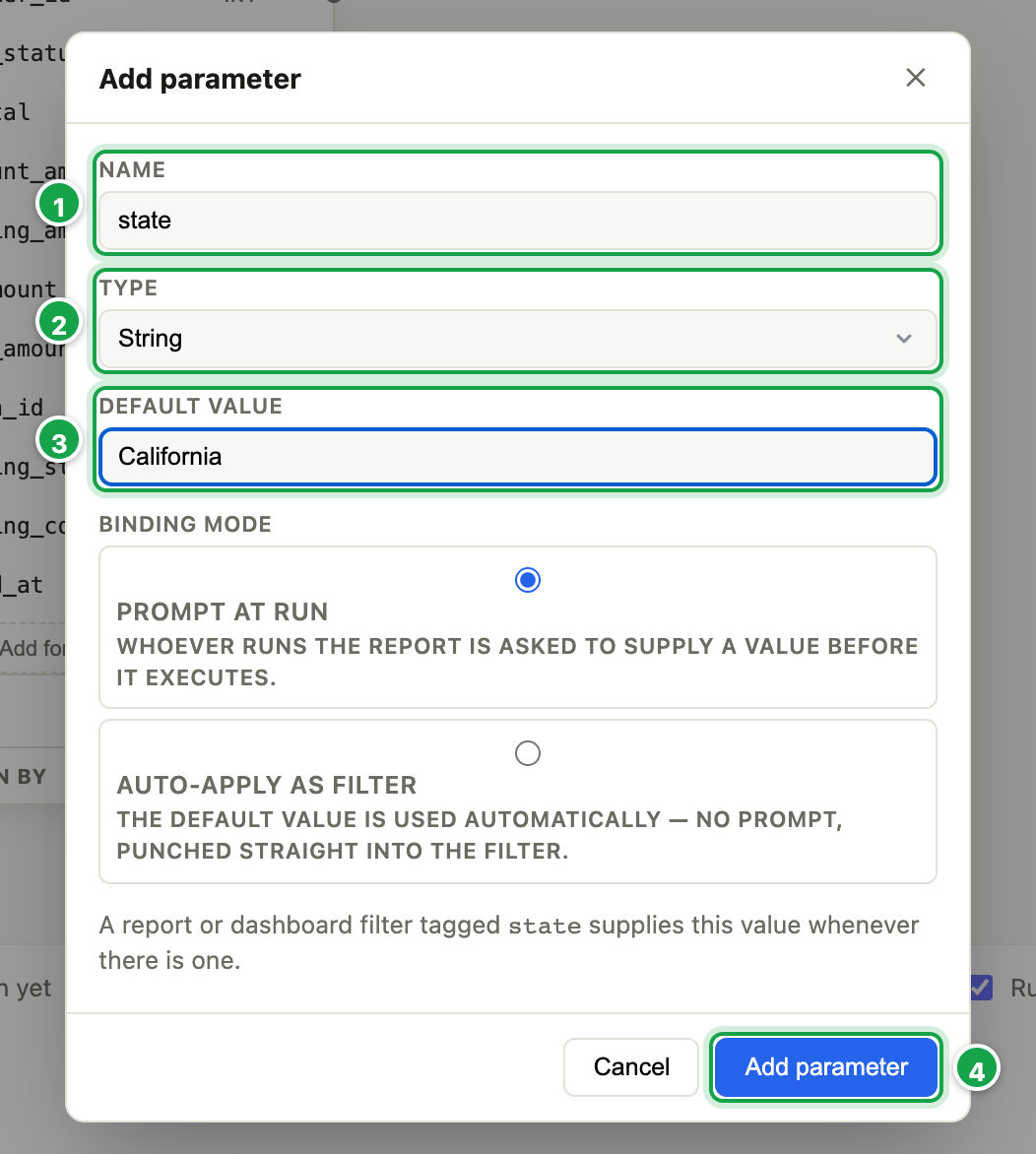
| # | What it is |
|---|---|
| 1 | Name: used as :state in a filter or formula |
| 2 | Type: String, Number or Date |
| 3 | Default value: used when no filter supplies one |
| 4 | Add parameter |
A report or dashboard filter tagged with the same name supplies the value. When there isn’t one, the default is used.
If you use a :name without adding it, it’s listed as used, not declared. Click Declare to give it a type and default.
Worked example: one dataset, a state chosen on the dashboard
Orders for one state filters its rows to one state, and the state comes from whoever is reading.
- In the dataset, add a parameter: Name
state, Type String, Default valueCalifornia. It shows under Parameters 2. - On the orders table, add a filter: shipping_state equals
:state1. Save the dataset.
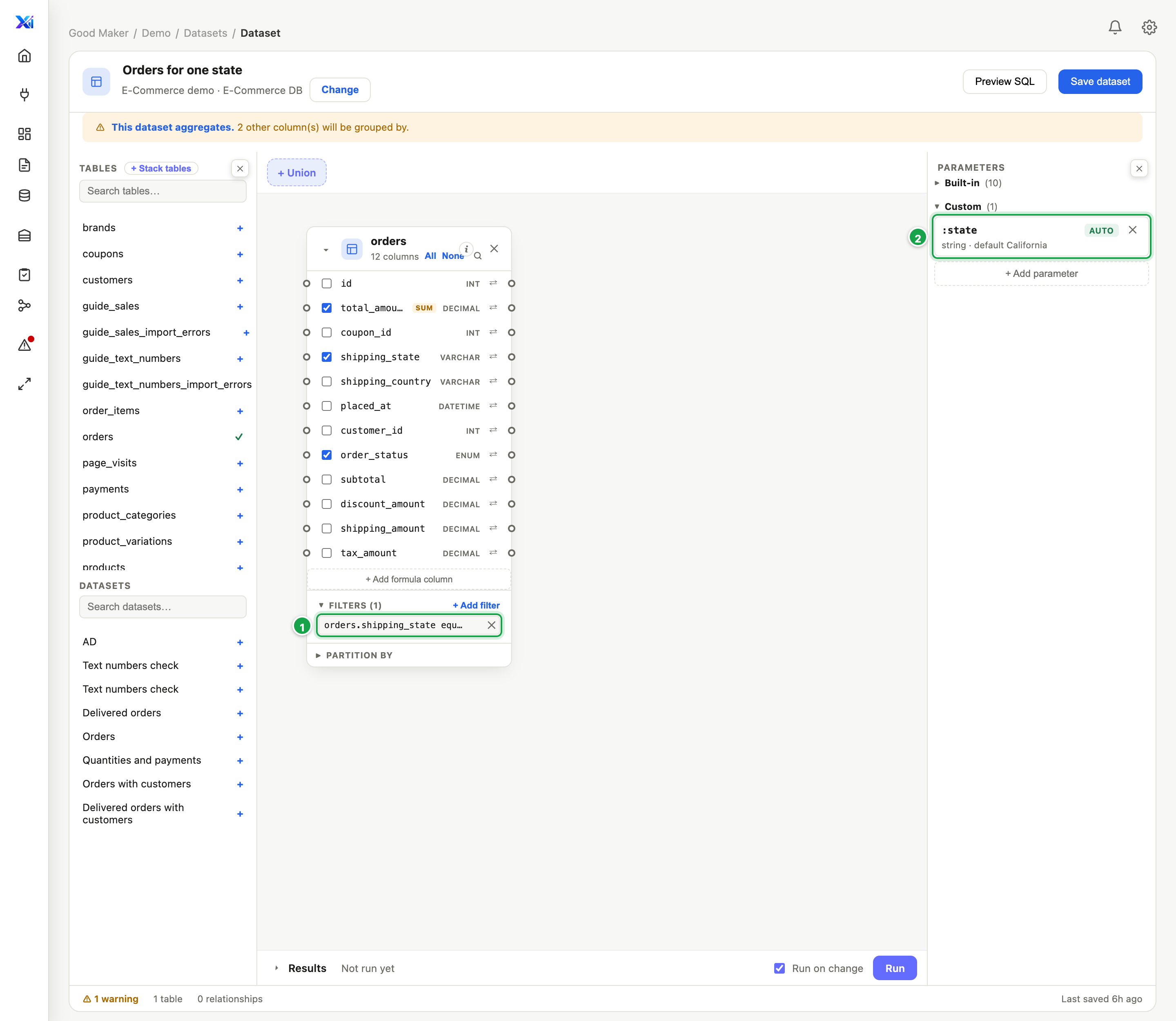
| # | What it is |
|---|---|
| 1 | The dataset’s filter: shipping_state equals :state |
| 2 | The parameter :state, with its default (California) |
- In a report (or a dashboard) on this dataset, open Filters, Add a filter on… orders_shipping_state, and set its Tag to
state1, the parameter’s name without the colon. - Parameters the data accepts 2 now shows :state coming from that filter.
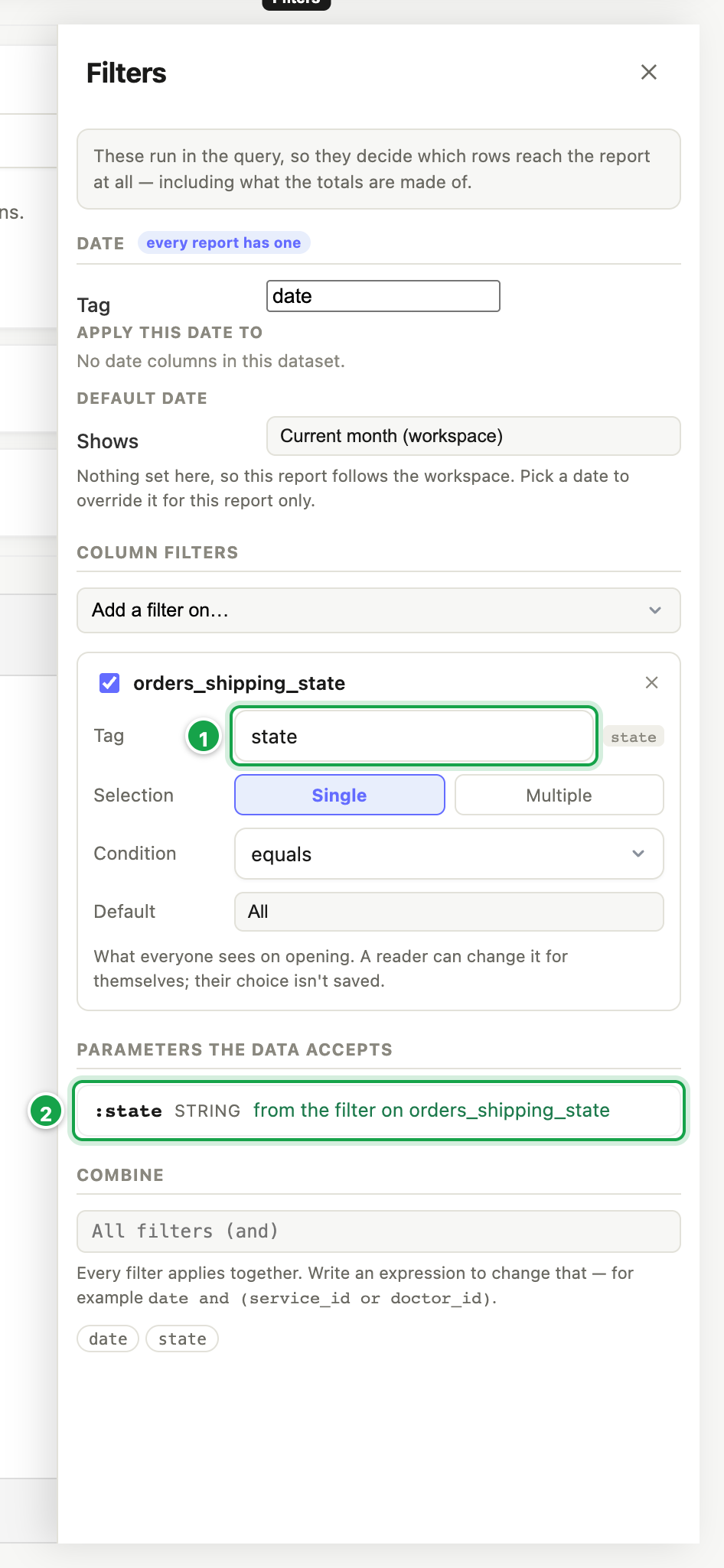
| # | What it is |
|---|---|
| 1 | The shipping-state filter’s Tag: state, the parameter’s name without the colon |
| 2 | Parameters the data accepts: :state, from this filter |
Now the state a reader picks is put into the dataset’s own query, inside its filter, before any totals, joins or stacking happen. Without a pick, the default (California) is used.
The date works the same way, with no tag needed: the report’s or dashboard’s date filter fills :start_date and :end_date on its own. To follow the reader’s date, add a filter on the date column, is between, and pick :start_date and :end_date on the Parameter tab of the two boxes. It keeps all of the last day, on a date-and-time column too.
In Formula mode, write the parameters without quotes (':start_date' is plain text and is never filled in), and for a date-and-time column use placed_at >= :start_date AND placed_at < :end_date_next so the last day is kept.
Why use a parameter, not just the report filter? A report filter narrows the dataset’s result. A parameter reaches inside the dataset: into a dataset built on another dataset (03.11), into each part of a union, or before the dataset totals its rows. One filter on the dashboard then drives all of them.
Not available yet: the Prompt at run option is saved, but nobody is asked for a value yet. The default is used. Always give a parameter a sensible default.
Next: 03.8 Stack tables (union)
Last updated 12 October 2026