
04.3 Columns and formats
Choose columns, rename them, total them, and format numbers, currencies, dates and units.
Choose and order columns
- Tick Show in report to show a column. Untick it to hide it from the result and from grouping.
- Drag ⠿ to reorder.
- Search columns… finds a column in a long list.
Column options
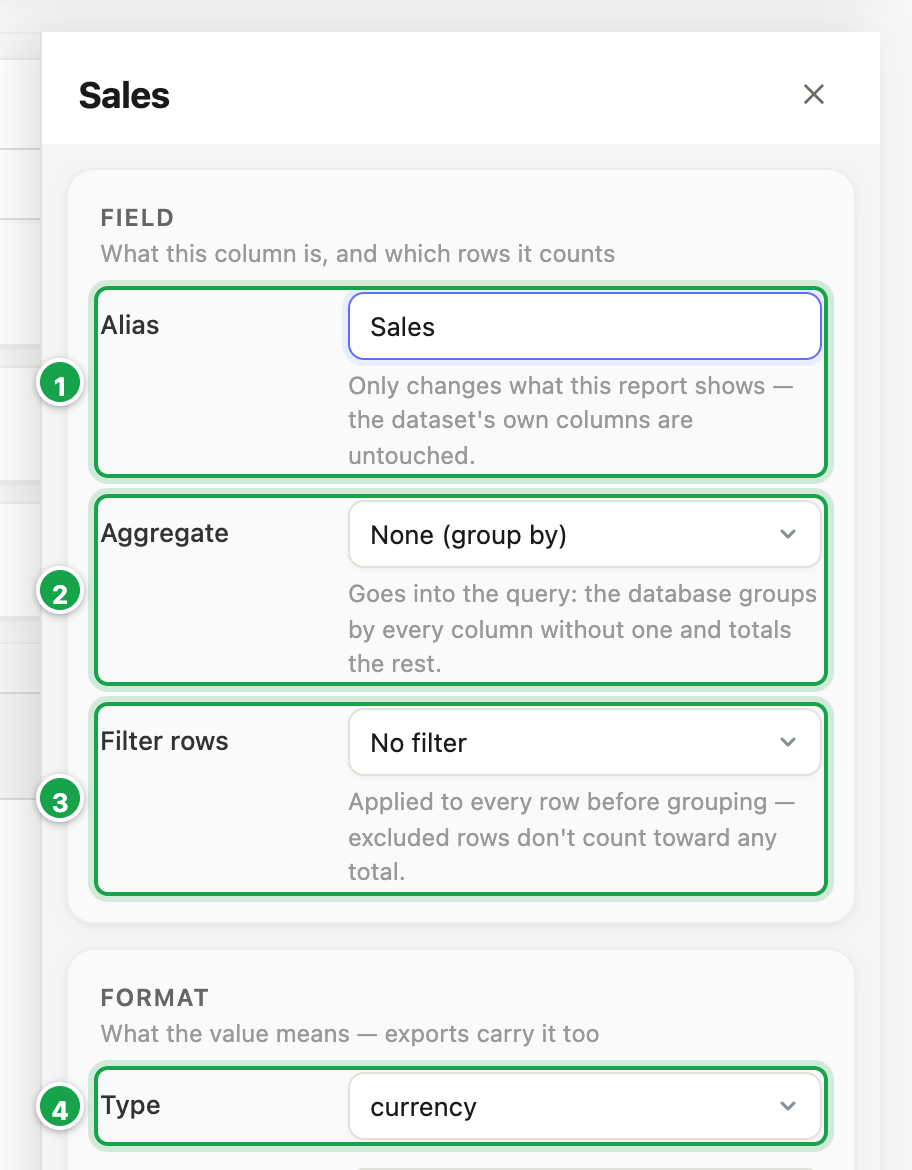
| # | What it is |
|---|---|
| 1 | Alias: the heading readers see |
| 2 | Aggregate: None groups by it; Sum, Avg, Count… total it |
| 3 | Filter rows: keep only rows where this column matches |
| 4 | Format › Type: number, percent, currency, date or text |
Click a column’s name. Its options open on the right in three sections.
Field: what it is
- Alias 1: the heading readers see. Only this report changes, not the dataset.
- Aggregate 2: None (group by), Sum, Avg, Count, CountDistinct, Min, Max. Columns with None become groups, the others are totalled (04.4).
- Filter rows 3: keep only rows where this column matches, e.g. amount > 0. Applies before totals, so excluded rows don’t count anywhere.
Format: how values look
Choose a Type 4, then its options appear below it.
Choose a Type:
| Type | Options |
|---|---|
| string (text) | Case: As-is, UPPERCASE, lowercase, Proper Case |
| number | Decimals; Scale: Thousands (K), Millions (M), Billions (B), Lac, Crore; Show in (units) |
| percent | Decimals |
| currency | Decimals; Symbol: $, €, £, ₹, none |
| date | Pattern: 17/06/2024, 17-Jun-2024, Jun-17, Jun-2024, June 2024, 2024-06-17, 2024 |
A date’s pattern also decides how it groups. Jun-2024 gives one row per month, 2024 one per year, 17/06/2024 one per day. To see monthly totals, pick a month pattern.
A changed setting shows override ↺. Click it to go back to the workspace default.
Formats travel into Excel and PDF exports.
Units
For a number column, Show in converts it, e.g. kg shown as tonnes, or grams as kg.
- The first time, Analytics asks What is this column stored in? It asks only once. Every report on this data remembers the answer.
- Units convert within one kind (weight to weight, never weight to length).
- Company units such as 1 bag = 50 kg are added under Workspace settings → Your company’s units.
Appearance
Fonts, colours and borders for this column, in this report only.
Next: 04.4 Group, total and sort
Last updated 12 October 2026