
04.10 Run and export
How design and view mode run a report, how to stop or refresh a run, and exporting to Excel, CSV or PDF.
Design mode works on a preview
While you design, Analytics uses the first 500 rows so every change is instant. You’ll see Showing the first N rows. Totals in design mode can therefore be smaller than the real ones. Switch to view mode for the full answer.
View mode runs the full report
- A progress bar shows Read X rows · Y groups so far…, with a running clock.
- ✕ Stop this run stops it.
- When you re-run, the old numbers stay on screen (Showing previous results) until the new ones arrive.
- No rows matched: check the filters and the report date, or open View SQL.
A plain list with nothing totalled or grouped shows the first 500 rows on screen. Export gets all of them.
Refresh
Refresh 5 reads the data again. Use it after the dataset or the underlying data changed. Going back to a layout or filter you already viewed is instant, because Analytics keeps those answers for your visit.
View SQL
View SQL 4 shows the query the report sends to the database. Handy for IT, or to check a filter.
Export
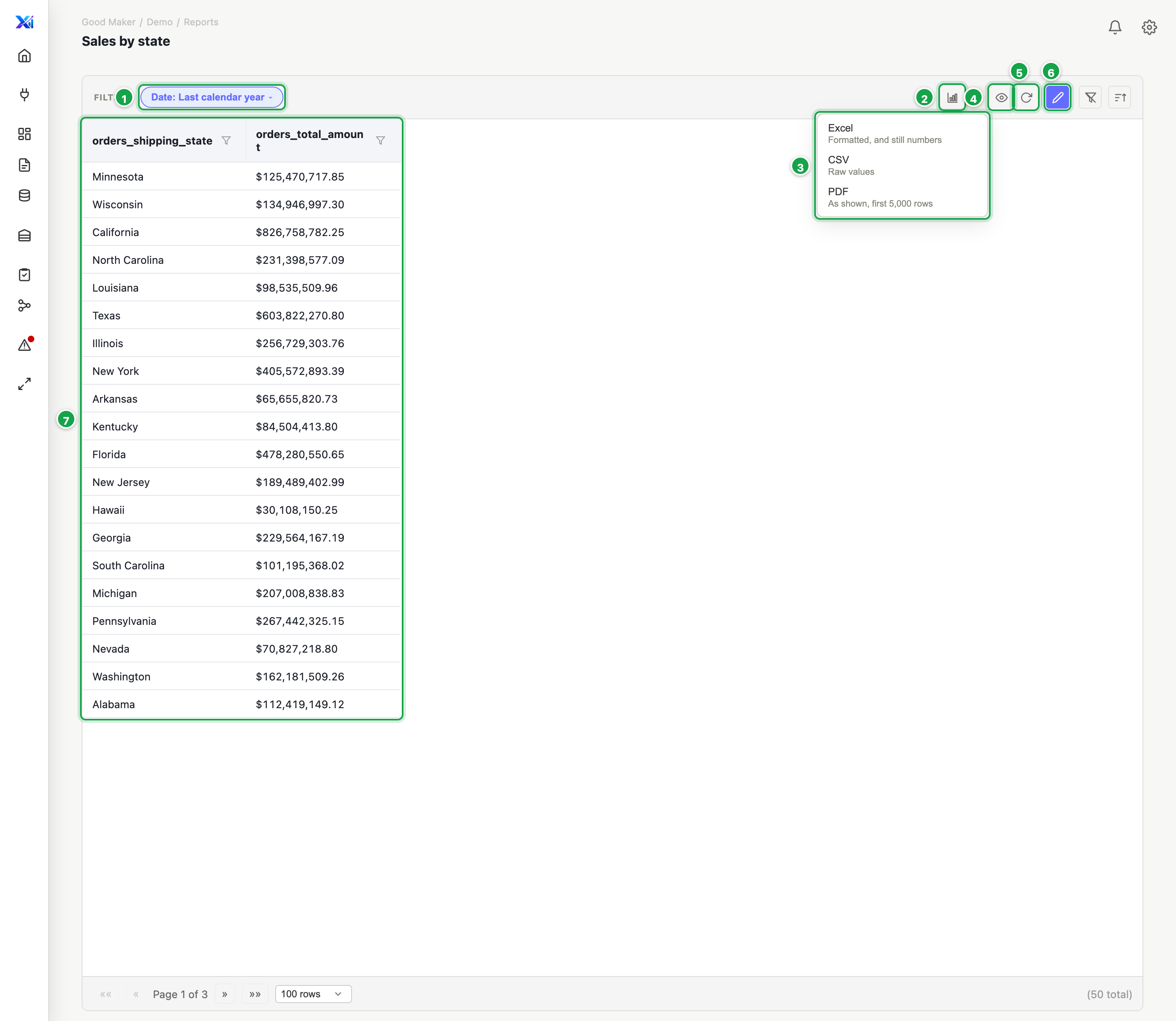
| # | What it is |
|---|---|
| 1 | The filters readers can change |
| 2 | Chart: draw it as a chart |
| 3 | Export: Excel, CSV or PDF |
| 4 | View SQL |
| 5 | Refresh |
| 6 | Edit report: back to design mode |
| 7 | The full result, worked out on the server |
In view mode, the strip above the result has the filters 1, Chart 2, Export 3, View SQL 4, Refresh 5 and Edit report 6. The result 7 is worked out on the server.
Export 3 → choose:
| Format | You get |
|---|---|
| Excel | Formatted, still real numbers and dates. Up to 1,048,575 rows. |
| CSV | Raw values, every row. Best for very large results or feeding other systems. |
| As shown on screen, first 5,000 rows |
Every export:
- has every row under the current filters (not only the preview),
- keeps your columns, headings, formats, units, totals and row tags (row tags are not in CSV),
- is named Report name YYYY-MM-DD, with the active filters written under the title,
- uses your unsaved changes if there are any.
Exports are tables. A chart view exports its numbers, not the picture.
Header, footer and theme
- Header / Footer on the toolbar add bands above and below the report, where you can place Label, Line, Image and Rectangle shapes. In reports, the label text and images can’t be set yet, and bands are not included in exports. Dashboards support both fully (05.4).
- Theme sets fonts and colours for table headers, rows, subtotal and total rows. It applies to every report and dashboard in the workspace, immediately.
Next: 05.1 What a dashboard is
Last updated 12 October 2026