
04.2 Create a report
Create a report, bring in a dataset, find your way around the design screen and save your work.
1. Create it
- Reports → + New report.
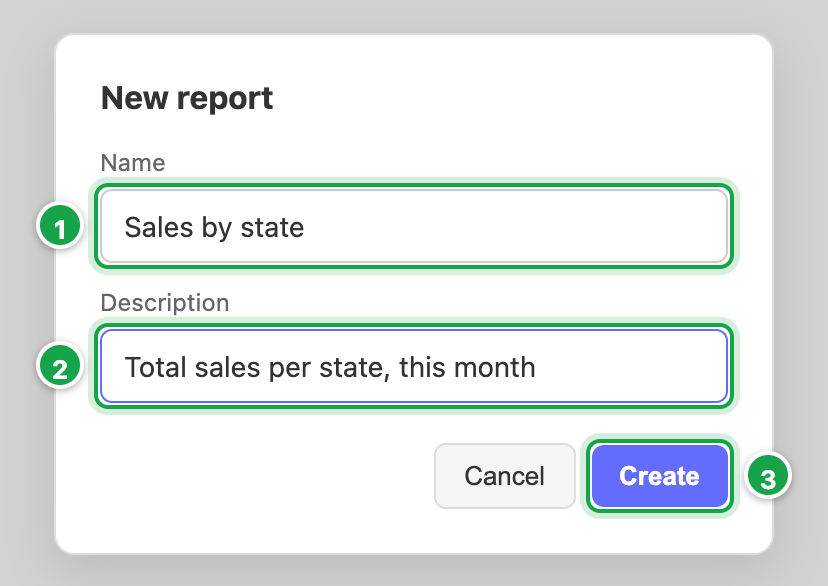
- Give it a Name 1 and, optionally, a Description 2.
- Click Create 3. It opens in design mode.
| # | What it is |
|---|---|
| 1 | Name |
| 2 | Description: what the report is for (optional) |
| 3 | Create: opens the report in design mode |
2. Bring in a dataset
- In the left panel, click + Pull dataset (in the picture below, 3).
- Pick a dataset from the list.
Every column of the dataset is now shown. Untick what you don’t need, see 04.3.
Tools next to the dataset name 1:
- i (First rows): the first 200 rows of the dataset.
- Edit dataset: opens the dataset builder. The breadcrumb brings you back.
- Refresh: read the data again, e.g. after the dataset changed.
- Remove: take the dataset out of this report. The dataset itself is not deleted.
More than one dataset? A report can pull several. Each keeps its own settings, and the dropdown at the top of the left panel picks which one is on screen. Readers see one at a time.
3. The design screen
| # | What it is |
|---|---|
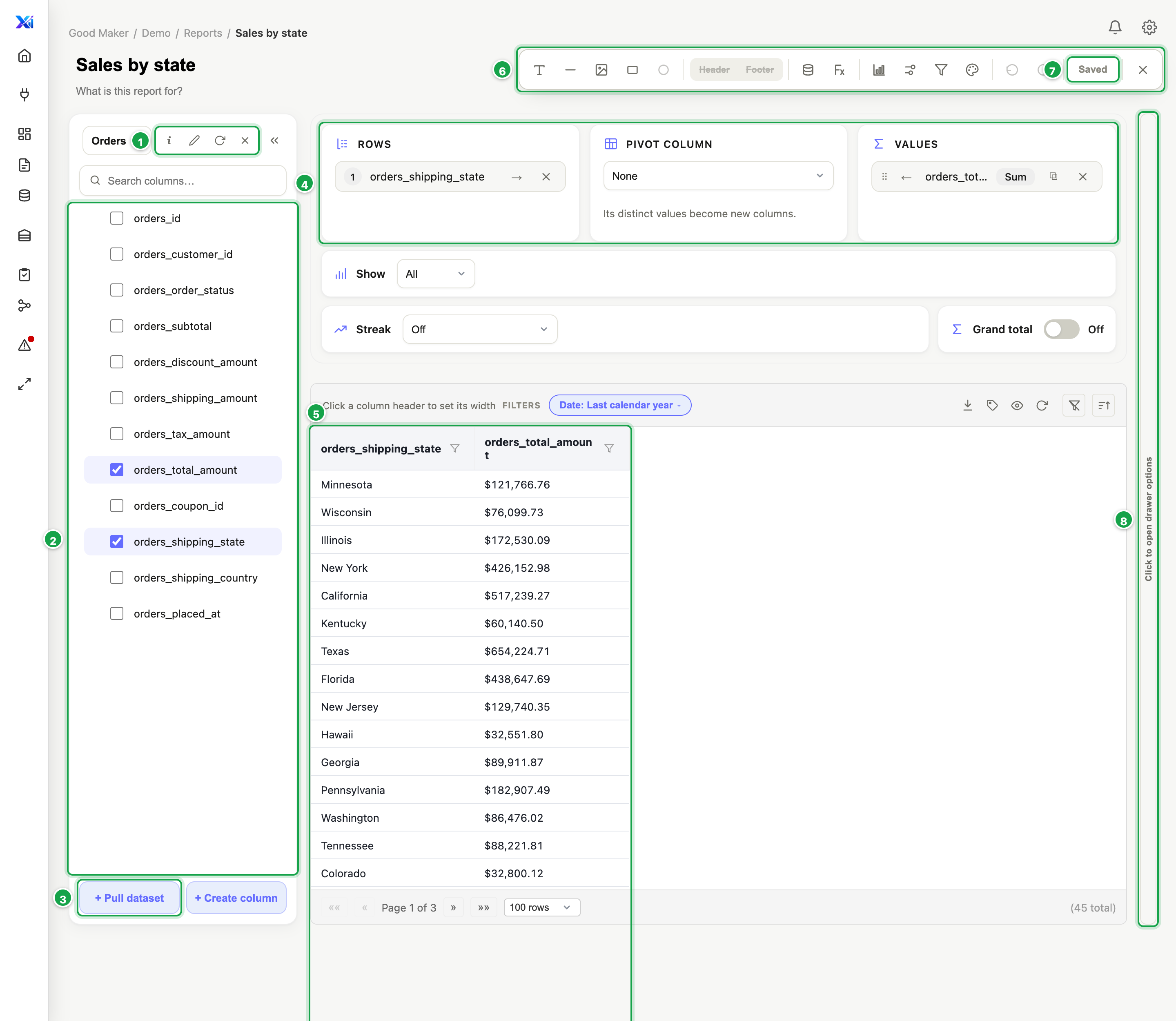
| 1 | The dataset, with i (first rows), Edit dataset, Refresh and Remove |
| 2 | The dataset’s columns. Tick to show, click a name for its options. |
| 3 | + Pull dataset |
| 4 | Rows, Pivot column, Values: what the report groups and totals |
| 5 | The result: in design mode, the first 500 rows |
| 6 | The toolbar: shapes, formulas, view, parameters, filters, theme |
| 7 | Save: shows how many changes are waiting |
| 8 | The options drawer: click to open |
- 2 Left: the dataset’s columns.
- 4 Above the result 5: the Rows, Pivot column and Values boxes that shape it (04.4).
- 8 Right: the options drawer. Click a column or a box item and its options appear there.
- 6 Toolbar (top right): shapes, Header/Footer, SQL formula, UI formula, View, Parameters, Filters, Theme, Undo, Redo, Save, ✕.
4. Save
Nothing is saved until you click Save 7. It shows how many changes are waiting (Save 4). Undo and Redo go back up to 100 steps.
Save before you close. Clicking ✕ Close editor, or going to another page inside Analytics, with unsaved changes loses them without asking. Only closing the browser tab warns you.
These are saved immediately for the whole workspace, not with Save, and can’t be undone:
- changes in Theme,
- the Default fact aggregate,
- the workspace’s default date (Reports show).
Next: 04.3 Columns and formats
Last updated 12 October 2026