
02.2 Import a file (CSV, Excel, JSON)
Use Upload Data when you have a file in hand, such as an export from another system or a spreadsheet, and want it as a table you can report on.
Accepted files: .csv, .xlsx, .xls, .json, up to 500 MB (your administrator can raise this).
Where to find it
On the workspace Home page, under Data sources, click Upload Data.
Step 1: Choose where it goes
- Pick the Connection 1.
- Pick the Database. The file becomes a table in this database.
If no database is listed, add one first: see 02.1 Connect a database.
Step 2: Choose the file and the table
- Click Choose a file to import 2 and pick your file. You’ll see Uploading the file… N%, then Inspecting file….
- A row appears for the file. An Excel file gets one row per sheet, so each sheet can go to its own table. Untick any sheet you don’t want.
- Check the Table name 3. Analytics suggests one from the file or sheet name, and you can change it.
- Choose what should happen to the table 4:
| Choose | When | What happens |
|---|---|---|
| New table | The first time you load this data | A new table is created. The name must not already be taken. |
| Append | You’re adding more rows, e.g. this month’s file | The rows are added to an existing table. Nothing already there is touched. |
| Replace | The file is a complete fresh copy | Everything in the existing table is removed and the file’s rows take its place. This can’t be rolled back. If the import fails, the table is left as it was. |
-
Analytics checks your file against the table 5 as you type and tells you what it finds:
- All N columns match the table: good to go.
- The file has columns the table does not: rename or remove them in the file, or the import is refused.
- The table needs a column the file does not have: every row would be refused. Add it to the file.
- The table has a column the file does not: fine, that column is simply left empty.
- The table doesn’t exist / already exists: check the name, or pick a different option above.
A red message stops the import until it’s fixed.
-
Click Import 6.
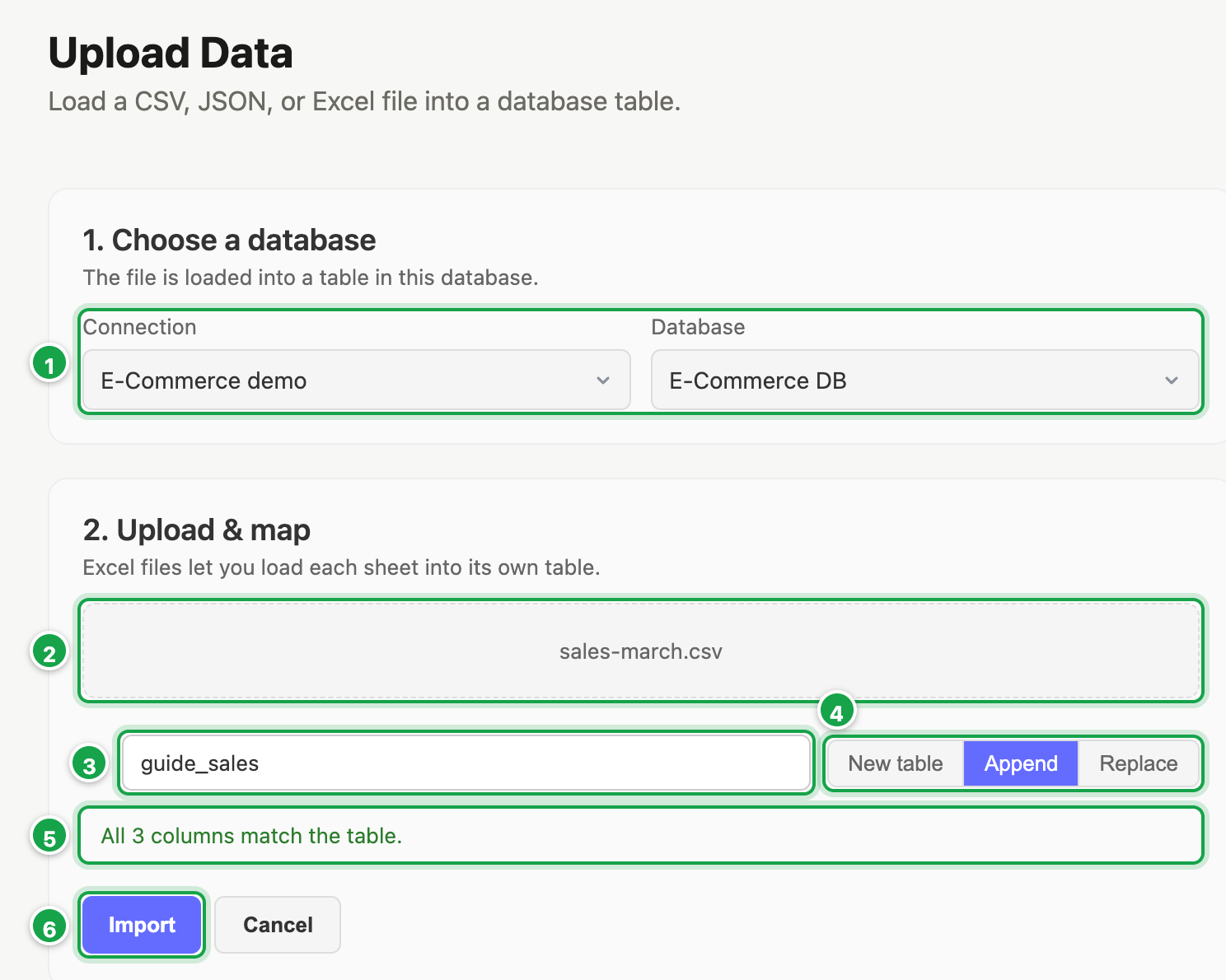
| # | What it is |
|---|---|
| 1 | Connection and Database: where the table goes |
| 2 | Choose a file to import |
| 3 | Table name |
| 4 | New table, Append or Replace |
| 5 | The check against the table: All 3 columns match the table. |
| 6 | Import |
While it runs
You’ll see the progress, e.g. Sheet 2 of 3 (Orders) · 412,000 rows read · 400,000 written, with a running clock. Click ✕ to stop it.
When it finishes
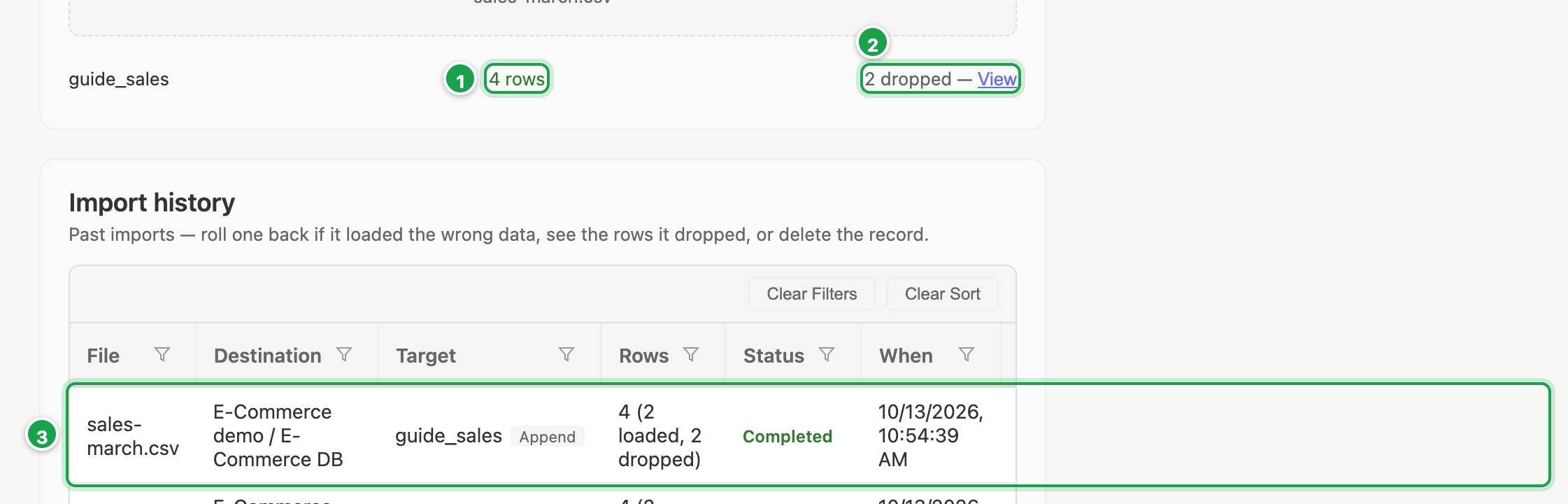
| # | What it is |
|---|---|
| 1 | Rows in the file |
| 2 | N dropped — View: rows the database refused |
| 3 | In Import history: 4 (2 loaded, 2 dropped) |
Each table shows how many rows were loaded. If some rows were refused by the database (for example, text in a number column), you’ll see N dropped — View 2. See 02.3 Fix and re-upload dropped rows.
Rows that were pasted into one cell
Sometimes data copied from another system and pasted into Excel ends up with several rows squeezed into one cell. Analytics notices this and offers Recover them as N separate rows, which is ticked by default. Leave it ticked unless you know those cells are meant to hold several lines.
Import history: undo a load
The Import history list below shows every past import: file, table, how it was loaded, rows loaded and dropped, status, when and by whom.
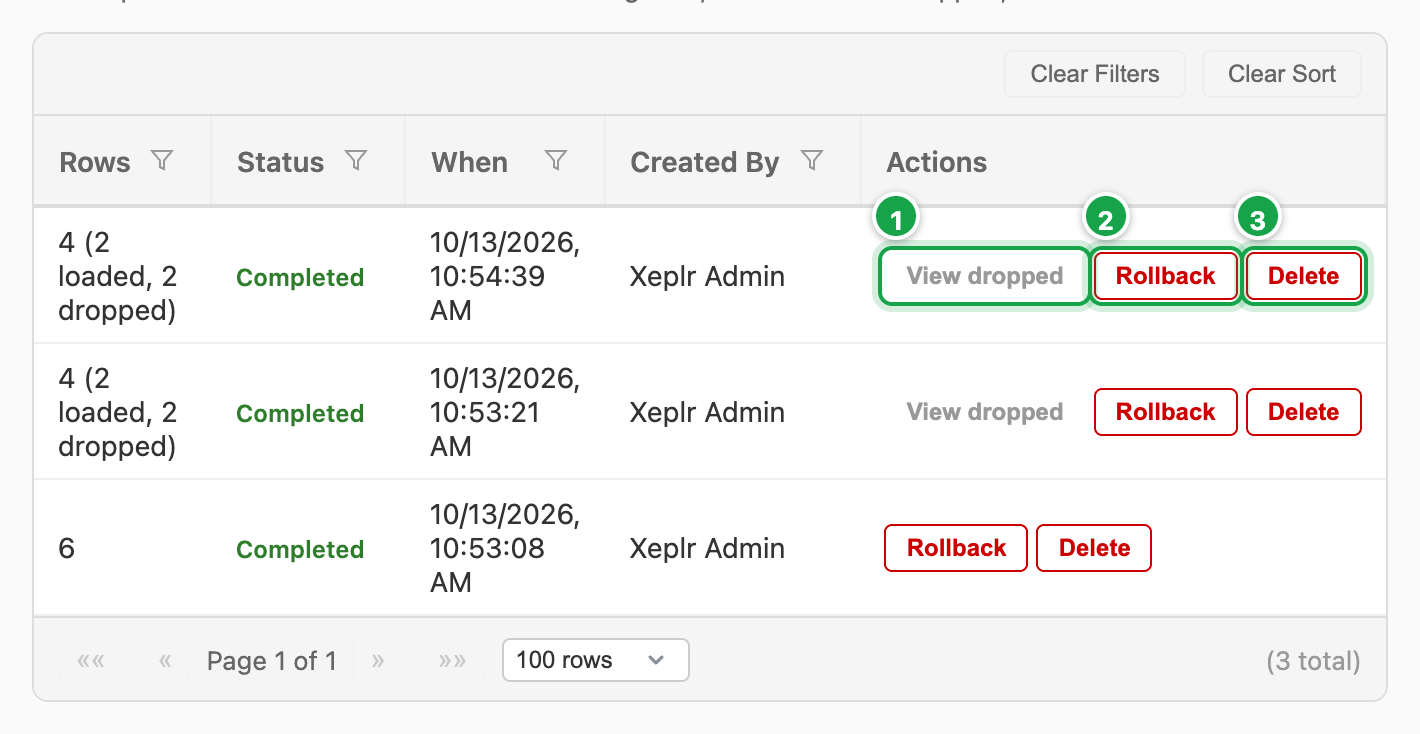
| # | What it is |
|---|---|
| 1 | View dropped |
| 2 | Rollback: remove every row this import added |
| 3 | Delete: the record only, not the data |
- Rollback 2 removes every row that import added. Use it if you loaded the wrong file. It’s not offered for a Replace import.
- View dropped 1 opens the rows that were refused.
- Delete 3 removes the history entry only. It does not remove the data. Roll back first if you want the data gone, because after deleting the record you can no longer roll it back.
Good to know
- One file can’t be imported twice at the same time. Wait for the first import to finish.
- A very long import (over an hour by default) is stopped automatically.
- For data that keeps arriving from another database, use 02.4 Move data instead of uploading files again and again.
Next: 02.3 Fix and re-upload dropped rows
Last updated 12 October 2026